Monitoring Google Cloud Storage buckets
Google Cloud Storage offers usage logs and storage logs, also known as access logs, as CSV files you can download. Usage logs provide information on all requests made to a specified bucket and are created hourly. Storage logs provide information about that bucket's storage consumption for the last day and are created daily. Once set up, usage logs and storage logs are automatically created as new objects in the specified bucket. The Wazuh module for Google Cloud Storage buckets collects these logs and processes events using defined threat detection rules and decoders.
Configuring Google Cloud Storage buckets
This section describes how to create a bucket and enable logging. If you do not have credentials, follow the steps in the configuring Google Cloud credentials section.
Setting up Google Cloud Storage bucket log delivery
You need to create Storage buckets and enable logging before logs can be delivered to them. Set up log delivery for any bucket using Google Cloud Shell, the gsutil tool, the XML API, or the JSON API. Follow the usage logs and storage logs documentation for the most up-to-date instructions on enabling this feature.
The following steps use Google Cloud Shell to create a bucket and enable logging.
Note
The steps below configure Cloud Storage's legacy usage and storage logs feature (enabled via the --log-bucket flag). You can configure this mechanism only through the command line or REST API. Google documentation warns that this feature does not guarantee timely or complete delivery. For an alternative, see the Enabling Cloud Audit Logs (Data Access) section.
In the Google Cloud console, click Shell to open Cloud Shell and authenticate the Google Cloud SDK.

Create a bucket to store your logs using the following command:
# gcloud storage buckets create gs://<YOUR_BUCKET_NAME>
Replace
<YOUR_BUCKET_NAME>with your bucket name. Follow the Google naming guidelines when naming your bucket.Grant Google Cloud Storage the
roles/storage.objectCreatorrole to the bucket:# gcloud storage buckets add-iam-policy-binding gs://<YOUR_BUCKET_NAME> --member=group:cloud-storage-analytics@google.com --role=roles/storage.objectCreator
Enable logging for your bucket using the
--log-bucketflag:# gcloud storage buckets update gs://<YOUR_BUCKET_NAME> --log-bucket=gs://<YOUR_BUCKET_NAME>
Check logging status:
# gcloud storage buckets describe gs://<YOUR_BUCKET_NAME> --format="default(logging_config)"
If logging is enabled, the server returns the logging configuration in the response:
logging_config:
  logBucket: <YOUR_BUCKET_NAME>
  logObjectPrefix: <YOUR_BUCKET_NAME>
If logging is not enabled, the following is returned:
null
Configuring the Google Cloud Storage buckets module
Perform the following steps to configure the Wazuh module for Google Cloud Storage buckets to read logs from a Cloud Storage bucket. You can perform these steps on your Wazuh agent.
Add the following configuration within the
<ossec_config>block in the/var/ossec/etc/ossec.confconfiguration file of your endpoint:<gcp-bucket> <run_on_start>yes</run_on_start> <interval>1m</interval> <bucket type="access_logs"> <name><YOUR_BUCKET_NAME></name> <credentials_file>/var/ossec/wodles/gcloud/<YOUR_AUTHENTICATION_FILE_NAME>.json</credentials_file> </bucket> </gcp-bucket>
Where:
<run_on_start>: Schedules the module to run on the start or restart of the Wazuh agent service, depending on where the module is configured.<interval>: Sets a time interval between module executions.<name>: Contains the name of the Google Cloud Storage bucket from which logs are read.<credentials_file>: Contains the path to the Google Cloud credentials file. If you do not have credentials yet, follow the steps in the configuring Google Cloud credentials section.
Replace
<YOUR_BUCKET_NAME>with your bucket name and<YOUR_AUTHENTICATION_FILE_NAME>with the name of your credential file.Restart the Wazuh agent service to apply the changes:
# systemctl restart wazuh-agent
Visualizing the events on the Wazuh dashboard
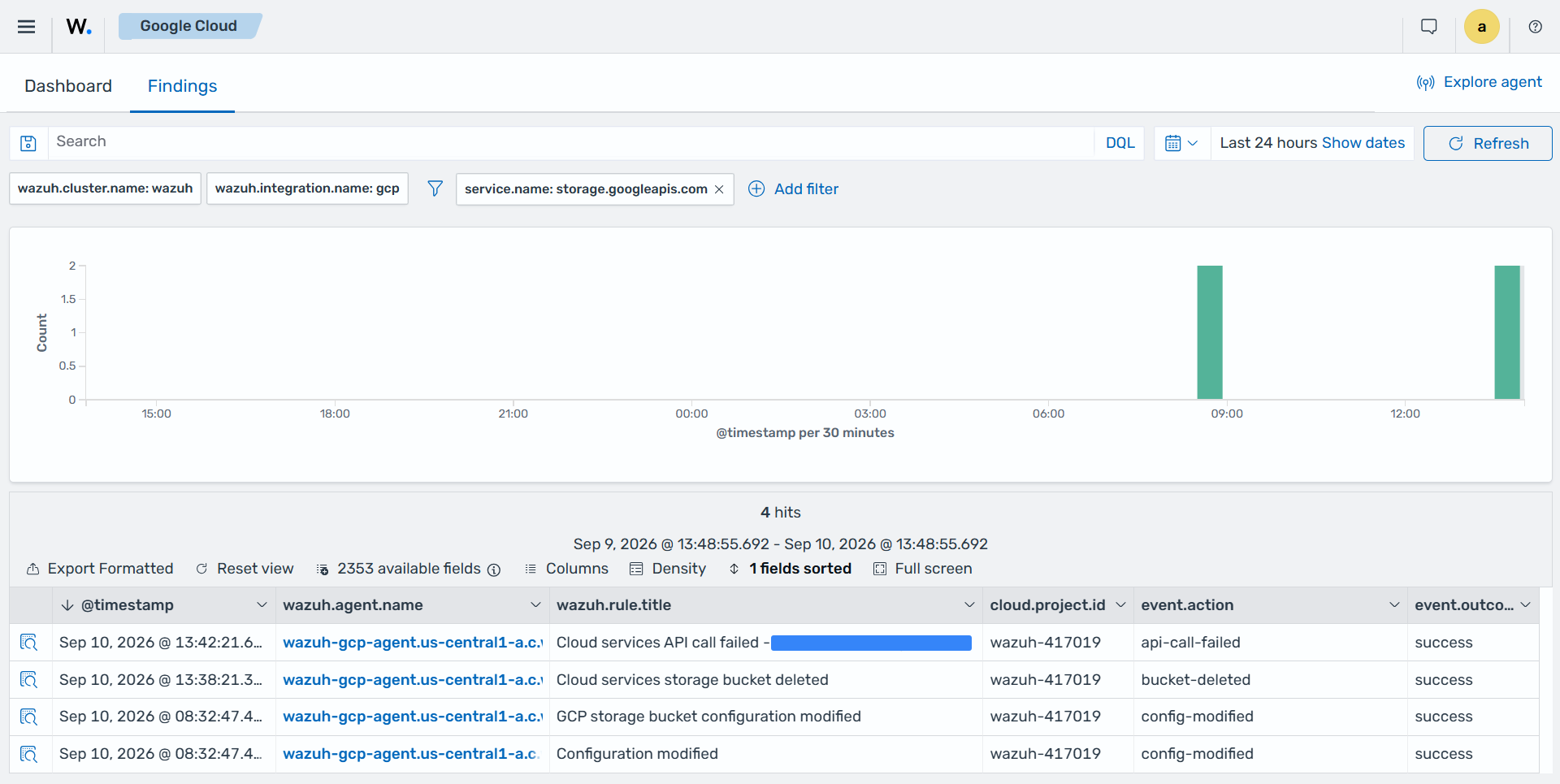
Navigate to Cloud Security > Google Cloud, and click the Findings tab. Apply the following filter to view findings generated from Google Cloud Storage bucket events.
Click + Add filter. Then filter by
service.name.In the Operator field, select
is.Search and select
storage.googleapis.comin the Values field.Click Save.
Considerations for the Google Cloud Storage buckets integration
Consider the following factors related to log generation, delivery, and collection when configuring the Wazuh module for Google Cloud Storage buckets.
Configuring multiple buckets
Add a separate <bucket> block within the <gcp-bucket> section of the Wazuh agent configuration file for each Google Cloud Storage bucket. This configuration allows the Wazuh agent to collect logs from multiple buckets.
The following configuration shows an example with multiple buckets:
<gcp-bucket>
   <run_on_start>yes</run_on_start>
   <interval>1m</interval>
   <bucket type="access_logs">
       <name>wazuh-test-bucket</name>
       <credentials_file>/var/ossec/wodles/gcloud/wazuh-test-bucket-credentials.json</credentials_file>
   </bucket>
   <bucket type="access_logs">
       <name>wazuh-test-bucket-2</name>
       <credentials_file>/var/ossec/wodles/gcloud/wazuh-test-bucket2-credentials.json</credentials_file>
       <only_logs_after>2021-JUN-01</only_logs_after>
       <path>access_logs/</path>
   </bucket>
   <bucket type="access_logs">
       <name>wazuh-test-bucket-3</name>
       <credentials_file>/var/ossec/wodles/gcloud/wazuh-test-bucket3-credentials.json</credentials_file>
       <path>access_logs</path>
       <remove_from_bucket>no</remove_from_bucket>
   </bucket>
</gcp-bucket>
Where:
<name>: Contains the name of the Google Cloud Storage bucket from which logs are read.<credentials_file>: Contains the path to the Google Cloud credentials file.<only_logs_after>: Parses logs from a specific date onwards. It must follow theYYYY-MMM-DDformat.<remove_from_bucket>: Sets whether the logs are removed from the Google Cloud Storage bucket once they are read. The possible values arenoandyes.
Note
Only the <name> and <credentials_file> options are mandatory. Review the bucket options carefully.
Restart the Wazuh agent service to apply the changes:
# systemctl restart wazuh-agent
First execution
If no <only_logs_after> value is provided, the module fetches only the logs of the date of the execution.
Creation time in Google Cloud Storage bucket contents
When using the <only_logs_after> tag, the Wazuh module checks each item's creation time in the Google Cloud Storage bucket to determine whether to process a file. Manually moving an object within the specified bucket changes its creation date. The module then considers the object new and processes it again.
Wazuh ignores any date in the file name and uses only the creation date to determine whether to process a file.
Older logs
The Wazuh module for Cloud Storage buckets identifies new logs using the key of the last processed log object. This key includes the datetime stamp. When the <only_logs_after> option date is set to a datetime earlier than previous module executions, the system will ignore older logs.
Logging level
You can configure the verbosity level of the Google Cloud integration log using the wazuh_modules.debug option in the /var/ossec/etc/local_internal_options.conf file. This option controls the logging level used for debugging and troubleshooting.
Reparse
The reparse option re-fetches all Google Cloud Storage bucket logs from the integration start date to the present.
Warning
Using this option will generate duplicate alerts.
To fetch and process older logs, manually run the /var/ossec/wodles/gcloud/gcloud tool using the --reparse option.
# /var/ossec/wodles/gcloud/gcloud --integration_type access_logs --bucket_name 'wazuh-example-bucket' --credentials_file credentials.json --reparse --only_logs_after '2021-Jun-10' --log_level 2
Where:
--only_logs_afterparameter specifies the date from which the tool processes logs. If you don't provide anonly_logs_aftervalue, the module uses the date of the first file processed.--log_level 2parameter provides verbose output. This is useful for showing the script works, especially when handling a large amount of data.