Common criteria 6.1
The TSC common criteria CC6.1 states that: “The entity implements logical access security software, infrastructure, and architectures over protected information assets to protect them from security events to meet the entity's objectives”. This control is part of the security category of the TSC requirements. It requires the entity to maintain an inventory of its information assets. It also defines minimum expectations for managing logical and physical access to information systems, including user authentication, authorization, access reviews, provisioning and de‑provisioning, encryption, and asset inventory.
The use case below shows how Wazuh helps meet this requirement.
Use case: Maintaining asset inventory on a Windows endpoint
Wazuh meets the architecture, infrastructure, and security software aspects of the common criteria CC6.1 using the IT Hygiene capability.
Windows endpoint
In this use case, we show how to use the Wazuh Syscollector module to collect system information on a Windows 11 endpoint. This module collects information about the users, applications, services, ports, and protocols running on an endpoint.
Open the Wazuh agent configuration file
C:\Program Files (x86)\ossec-agent\ossec.confon your monitored Windows endpoint, and inspect thesyscollectorblock to verify that you have the same configuration as below:<!-- System inventory --> <wodle name="syscollector"> <disabled>no</disabled> <interval>1h</interval> <scan_on_start>yes</scan_on_start> <hardware>yes</hardware> <os>yes</os> <network>yes</network> <packages>yes</packages> <ports all="yes">yes</ports> <processes>yes</processes> <users>yes</users> <groups>yes</groups> <services>yes</services> <browser_extensions>yes</browser_extensions> <!-- Database synchronization settings --> <synchronization> <enabled>yes</enabled> <interval>5m</interval> <max_eps>75</max_eps> <integrity_interval>24h</integrity_interval> </synchronization> </wodle>
Wazuh dashboard
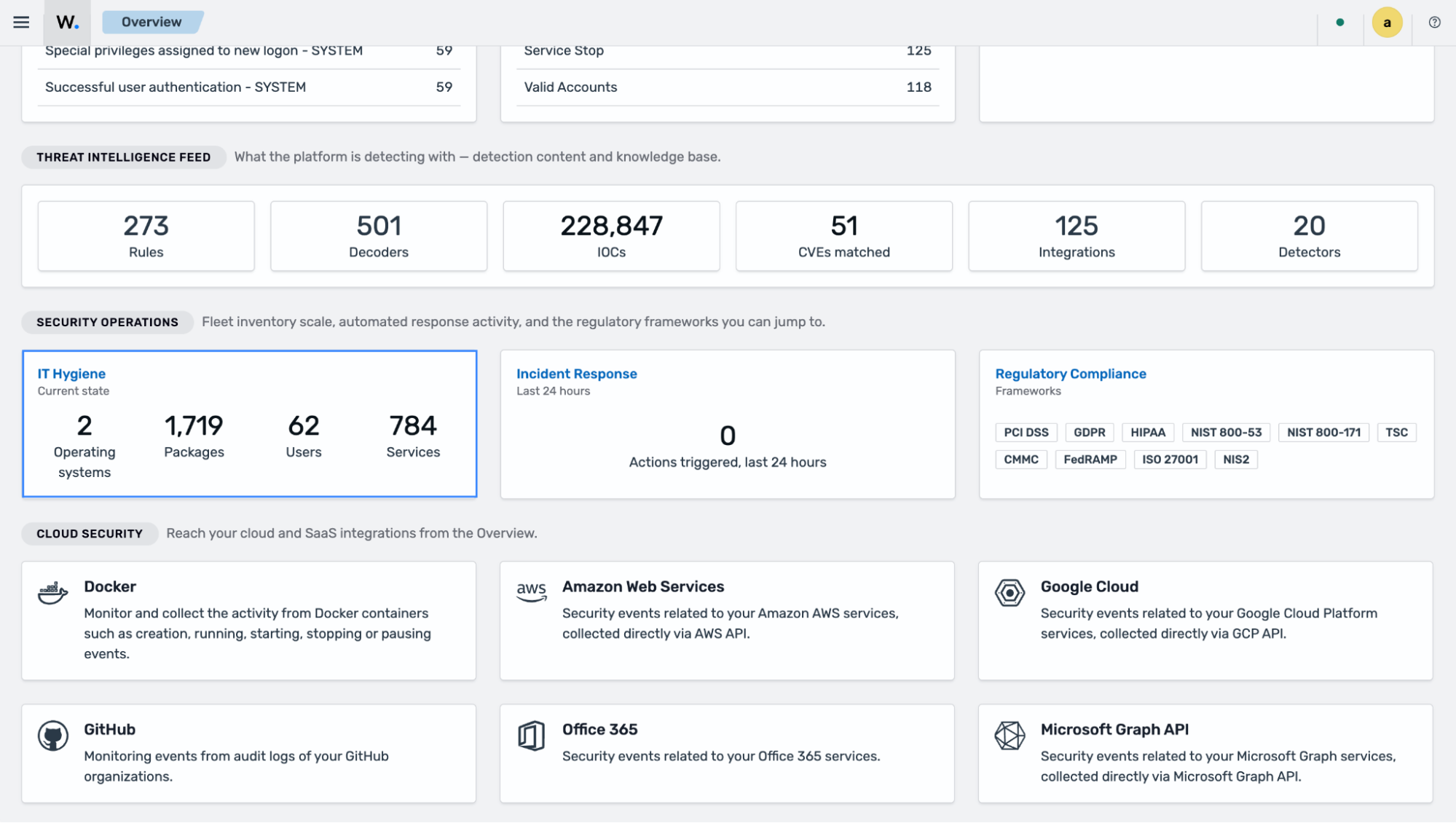
Navigate to IT Hygiene on the Wazuh dashboard.
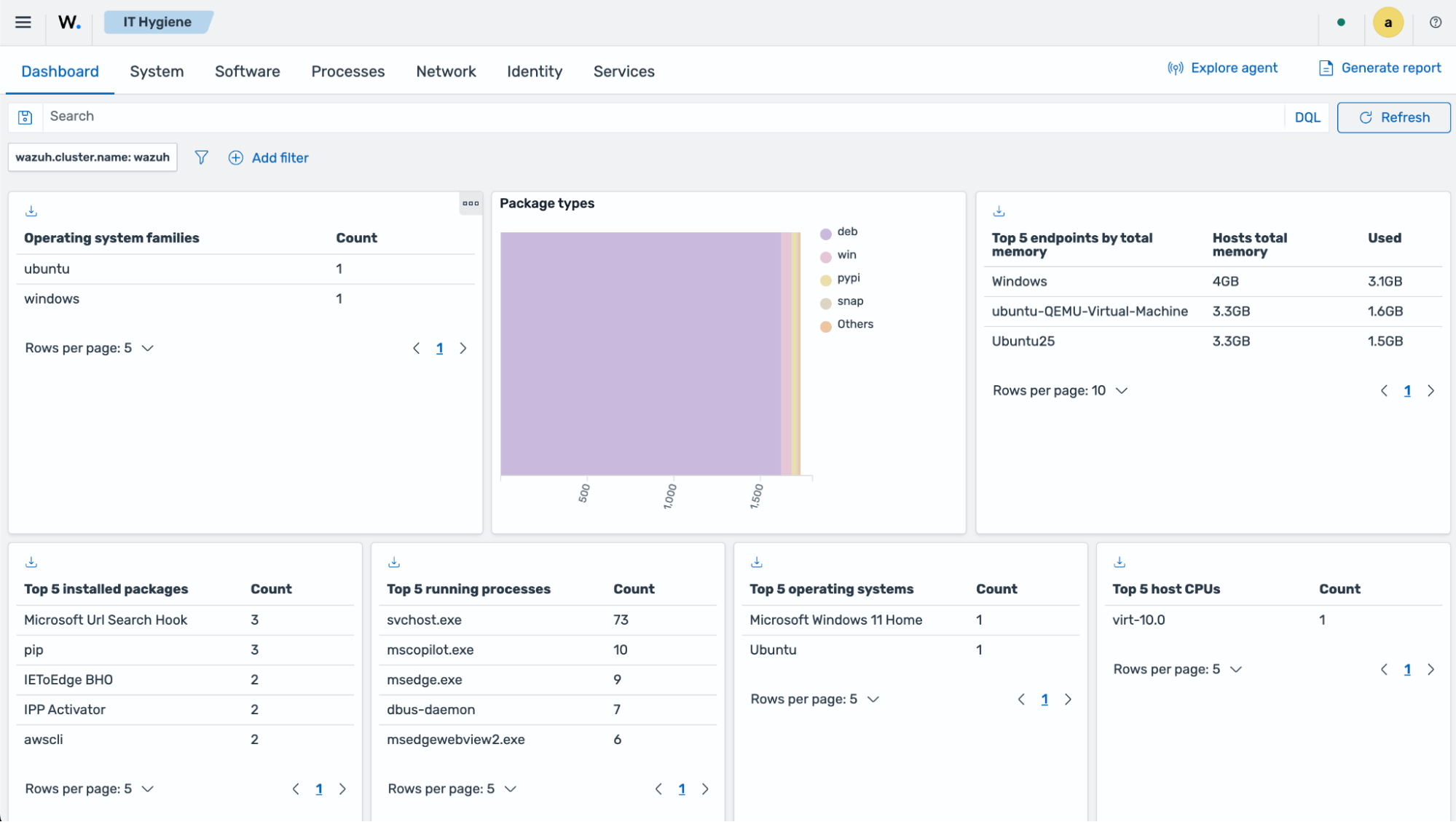
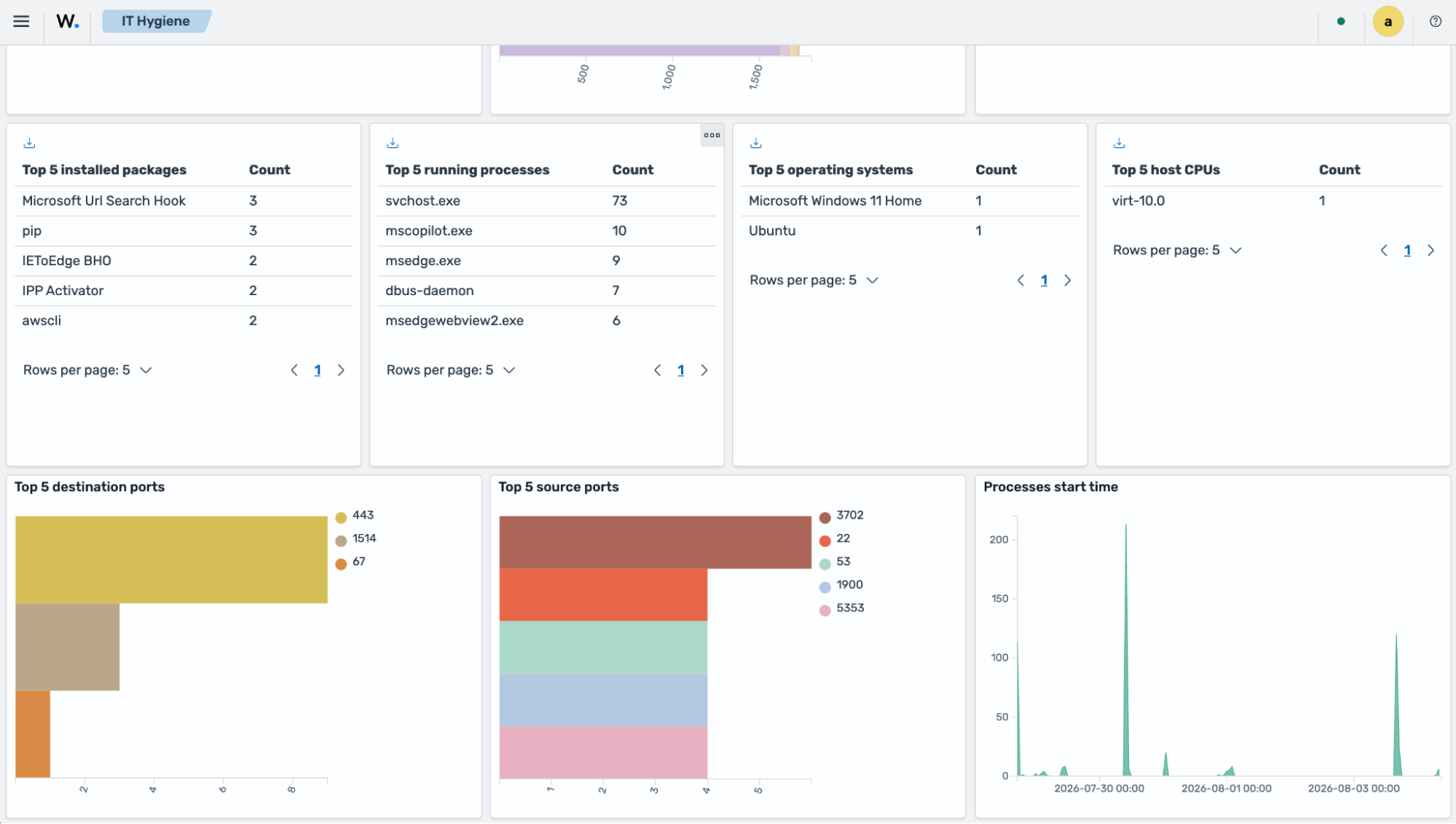
You can see details about installed packages, running processes, used ports, and process start time across several monitored endpoints.
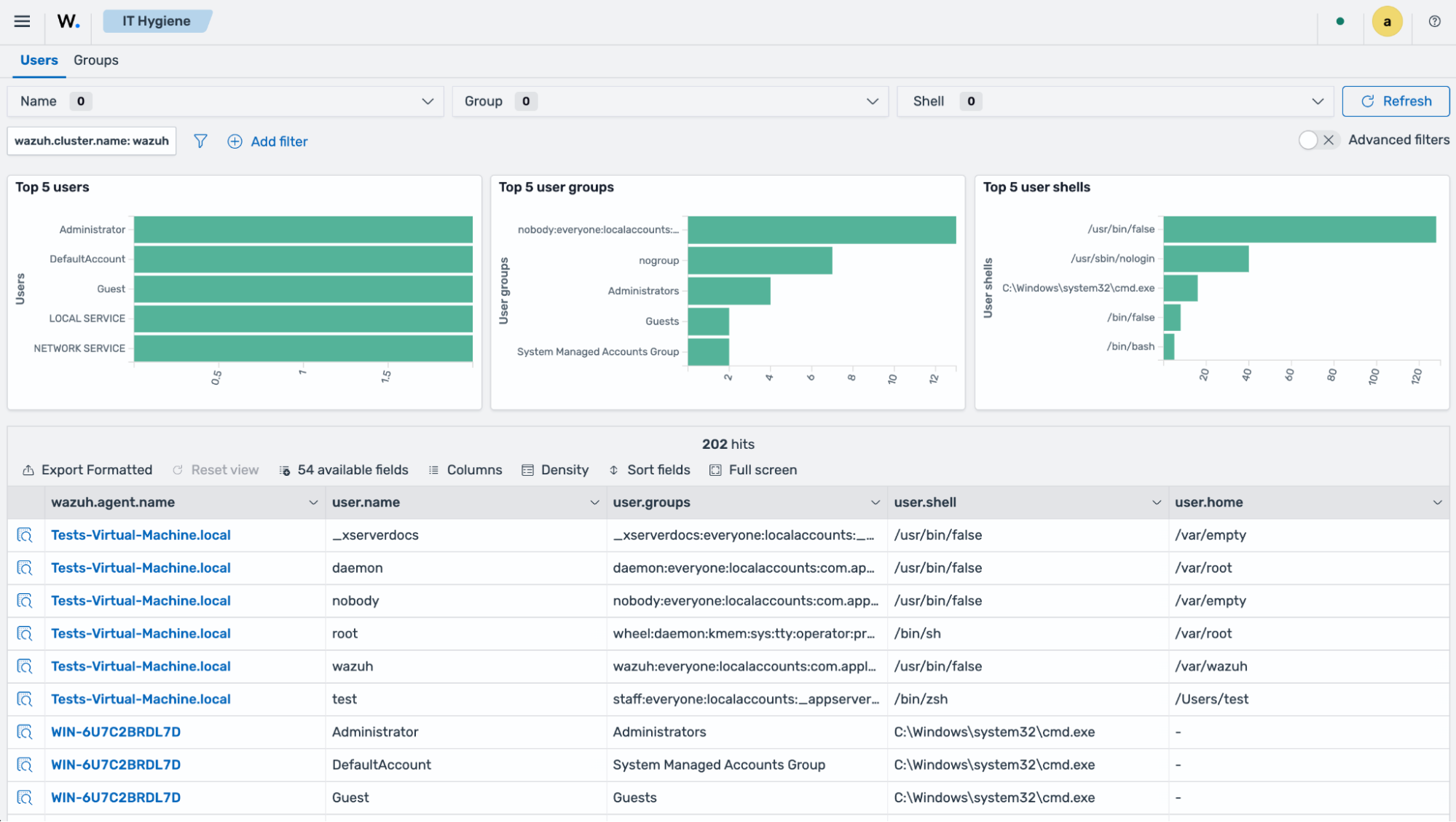
Navigate to Identity > Users to view user profiles within your environment.