Creating Google Cloud credentials
The Wazuh agent authenticates with Google Cloud before collecting events from Pub/Sub or Cloud Storage. Create a service account and assign the permissions required for the Google Cloud service you want to monitor.
Creating a service account
In your Google Cloud console, navigate to the IAM & Admin > Service Accounts section or search for Service Account in the top center search bar.
Click on + Create service account.
Add a name and description, and click on Create and continue.
Add roles to the service account:
For the Wazuh module for Google Cloud Pub/Sub, add two roles with Pub/Sub permissions:
Pub/Sub Publisher
Pub/Sub Subscriber
For the Wazuh module for Google Cloud Storage buckets, add the following roles with Google Cloud Storage bucket permissions:
Storage Object User
Storage Insights Collector Service
Note
Depending on your requirements, the service account can have roles that allow it to authenticate with both Google Cloud Pub/Sub and Cloud Storage.
Click Done to complete the creation of the service account.
Creating a credentials file for the service account
The Google Cloud integration uses a service account credentials file to authenticate with Pub/Sub or Cloud Storage. The JSON file contains the service account private key, project ID, and other authentication information.
Perform the following steps to create the credentials file:
In the Google Cloud console, navigate to IAM & Admin > Service Accounts. Select the service account option.
From the Keys tab, select Create Key from the Add key dropdown.
Select JSON, and click Create to complete the action.
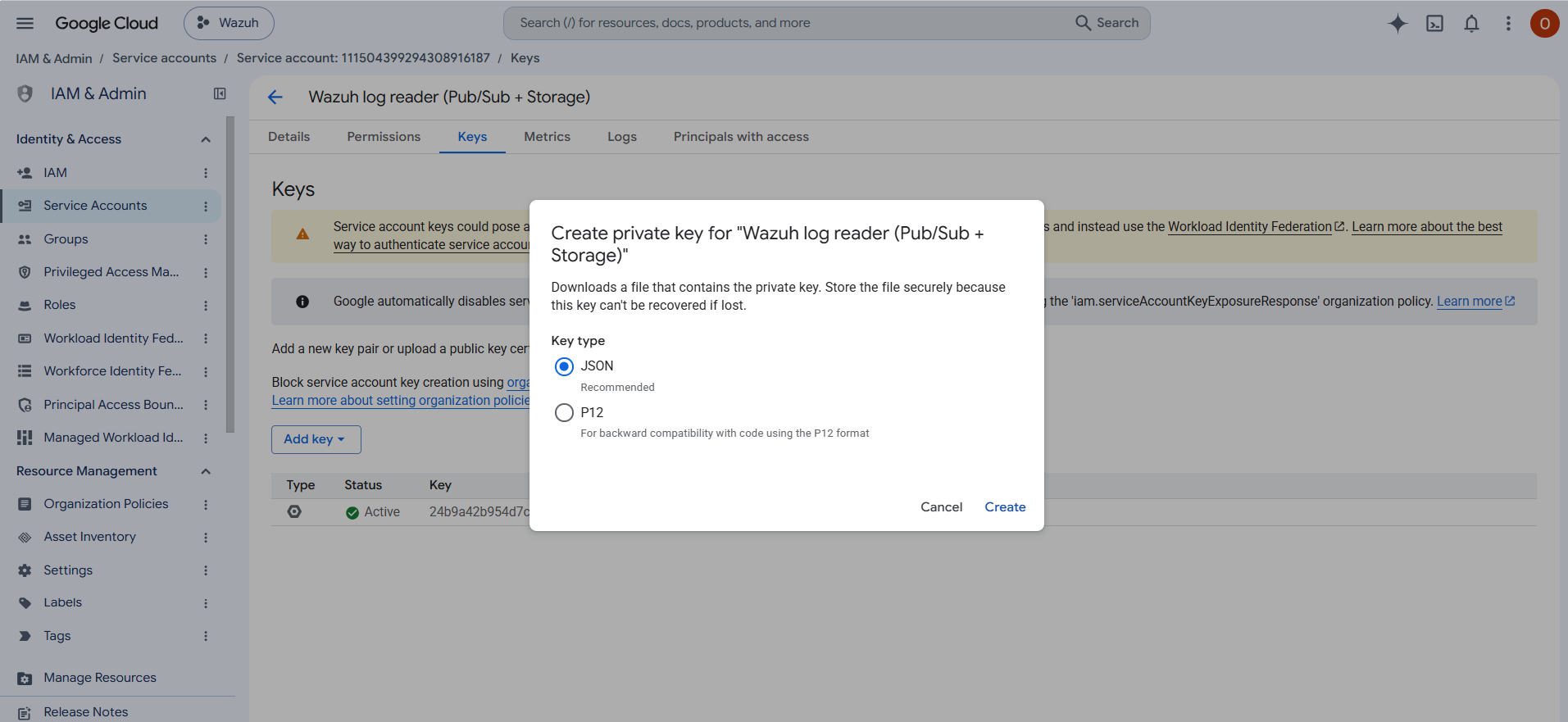
Google Cloud downloads the credentials file to the endpoint accessing the console. See an example below of the format of a credentials file:
{
    "type": "service_account",
    "project_id": "wazuh-gcloud-123456",
    "private_key_id": "1f7578bc****************d1ce352",
    "private_key": "-----BEGIN PRIVATE KEY-----\nMIIEv********qkPl0H6HrM\n-----END PRIVATE KEY-----\n",
    "client_email": "wazuh-mail@wazuh-gcloud-123456.iam.gserviceaccount.com",
    "client_id": "102784232161964177687",
    "auth_uri": "https://accounts.google.com/o/oauth2/auth",
    "token_uri": "https://oauth2.googleapis.com/token",
    "auth_provider_x509_cert_url": "https://www.googleapis.com/oauth2/v1/certs",
    "client_x509_cert_url": "https://www.googleapis.com/robot/v1/metadata/x509/wazuh-gcloud-acc%40wazuh-gcloud-123456.iam.gserviceaccount.com"
}
Transfer the credentials file to the Wazuh agent used for the integration. We recommend transferring the credentials file to
/var/ossec/wodles/gcloud/.Change the file ownership of the credentials file:
# chown root:wazuh /var/ossec/wodles/gcloud/<AUTHENTICATION_FILE_NAME>.json