Removing a malicious file with active response
In this use case, we download a malicious test file to a Windows 11 endpoint. Wazuh file integrity monitoring detects the file and evaluates the resulting finding against the configured Alerting monitor. When the finding meets the monitor conditions, Wazuh runs a custom remove-file script on the endpoint to delete the file.
Infrastructure
Endpoint |
Description |
|---|---|
Windows 11 |
We download a test malware file to this victim endpoint. This endpoint requires an installed Wazuh agent enrolled with the Wazuh manager. |
Configuration
Windows endpoint
Perform the following steps to configure the Wazuh agent to monitor filesystem changes in the C:\Users\*\Downloads directory.
Edit the
C:\Program Files (x86)\ossec-agent\ossec.confconfiguration file on the monitored Windows endpoint. Add the directories for monitoring within the<syscheck>block. To get additional information about the user and the process that made the changes, enable who-data audit:<directories check_all="yes" report_changes="yes" whodata="yes">C:\Users\*\Downloads</directories>
Restart the Wazuh agent using PowerShell with administrator privileges to apply the changes:
> Restart-Service -Name wazuh
Create a
remove-file.pyfile in theC:\Users\publicdirectory and add the following script to it:#!/usr/bin/python3 # Wazuh - Custom Active Response script (5.x compliant, stateless) # This program is free software; you can redistribute it # and/or modify it under the terms of the GNU General Public # License (version 2) as published by the FSF - Free Software # Foundation. import os import sys import json import datetime from pathlib import PureWindowsPath, PurePosixPath import platform LOG_FILE = "C:\\Program Files (x86)\\ossec-agent\\active-response\\active-responses.log" OS_SUCCESS = 0 OS_INVALID = -1 def write_debug_file(ar_name, msg): with open(LOG_FILE, mode="a") as log_file: ar_name_posix = str(PurePosixPath(PureWindowsPath(ar_name[ar_name.find("active-response"):]))) log_file.write(str(datetime.datetime.now().strftime('%Y/%m/%d %H:%M:%S')) + " " + ar_name_posix + ": " + msg + "\n") def main(argv): write_debug_file(argv[0], "Started") # get alert from stdin input_str = "" for line in sys.stdin: input_str = line break write_debug_file(argv[0], input_str) try: data = json.loads(input_str) except ValueError: write_debug_file(argv[0], "Decoding JSON has failed, invalid input format") sys.exit(OS_INVALID) command = data.get("command") # Stateless AR only ever receives "enable" - guard anyway if command != "enable": write_debug_file(argv[0], "Command is not 'enable' (got: " + str(command) + "), nothing to do") sys.exit(OS_SUCCESS) file_path = data.get("file", {}).get("path") if not file_path: write_debug_file(argv[0], "No file.path present in the active response payload") sys.exit(OS_INVALID) write_debug_file(argv[0], "Removing file: " + file_path) try: os.remove(file_path) write_debug_file(argv[0], "Removed file: " + file_path) except FileNotFoundError: write_debug_file(argv[0], "File not found, nothing to remove: " + file_path) except PermissionError: write_debug_file(argv[0], "Permission denied removing file: " + file_path) sys.exit(OS_INVALID) except OSError as e: write_debug_file(argv[0], "Failed to remove file " + file_path + ": " + str(e)) sys.exit(OS_INVALID) write_debug_file(argv[0], "Ended") sys.exit(OS_SUCCESS) if __name__ == "__main__": main(sys.argv)
Install PyInstaller using PowerShell with administrator privileges:
> pip install pyinstaller
> pyinstaller --version
Run the following command using PowerShell with user privileges to create the executable file:
> pyinstaller -F C:\Users\public\remove-file.py
You can find the created
remove-file.exeexecutable in theC:\Users\public\dist\directory.Copy the
remove-file.exeexecutable file to theC:\Program Files (x86)\ossec-agent\active-response\bin\directory.
Wazuh dashboard
Perform the following steps to configure an active response script that triggers when a suspicious file is detected.
On the Wazuh dashboard, create the active response configuration as described in configuration, with the following settings:
Field
Value
Name
remove_file_arExecutable
remove-file.exeLocation
LocalType
stateless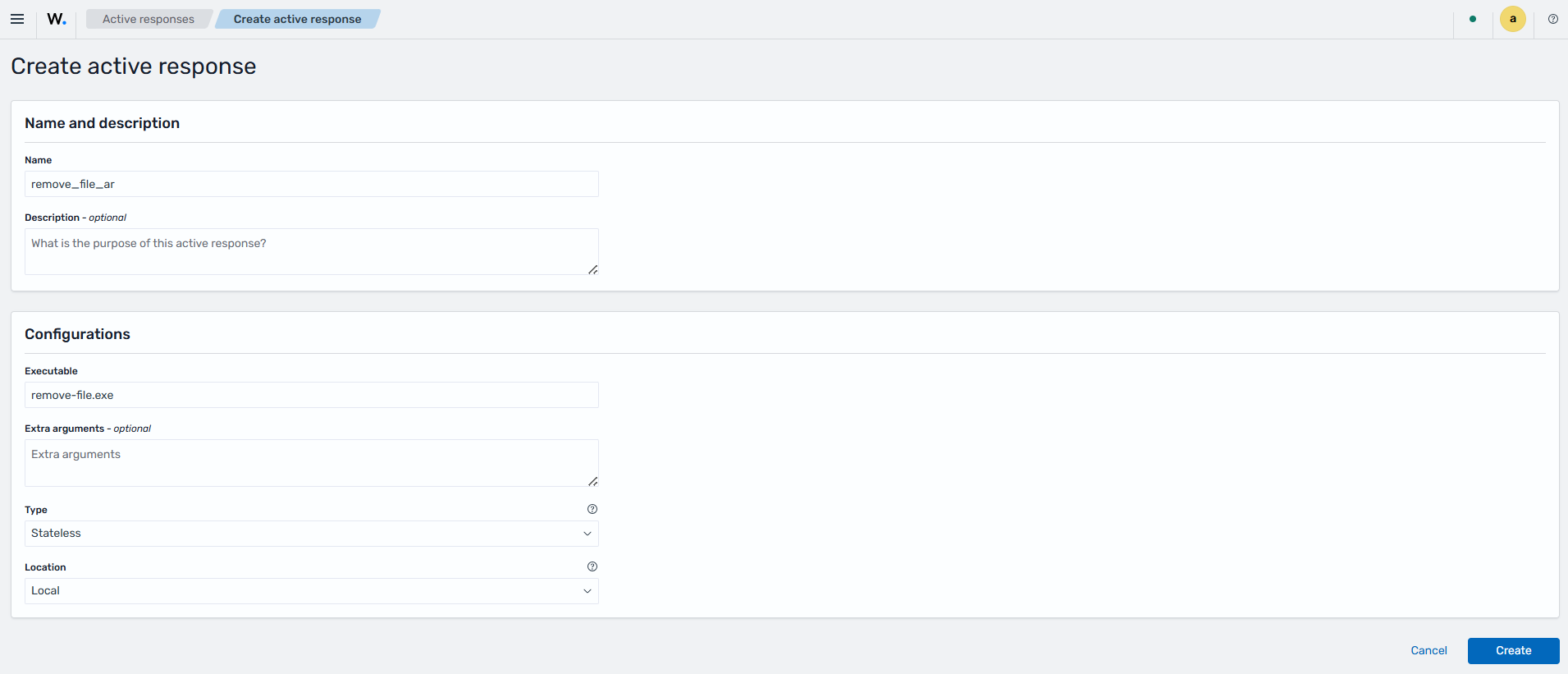
Navigate to Explore > Alerting.
Switch to the Monitors tab, then click Create Monitor. Fill in the following parameters.
Field
Value
Monitor name
remove_file_ar_monitorMonitor type
Active responseMonitor defining method
Visual editorFrequency
By intervalRun every
1 Minute(s)Index
wazuh-findings-v5-system-activityQuery name
remove_file_ar_queryField
wazuh.rule.id is fa371218-259d-5b52-b3a7-54c3234f774c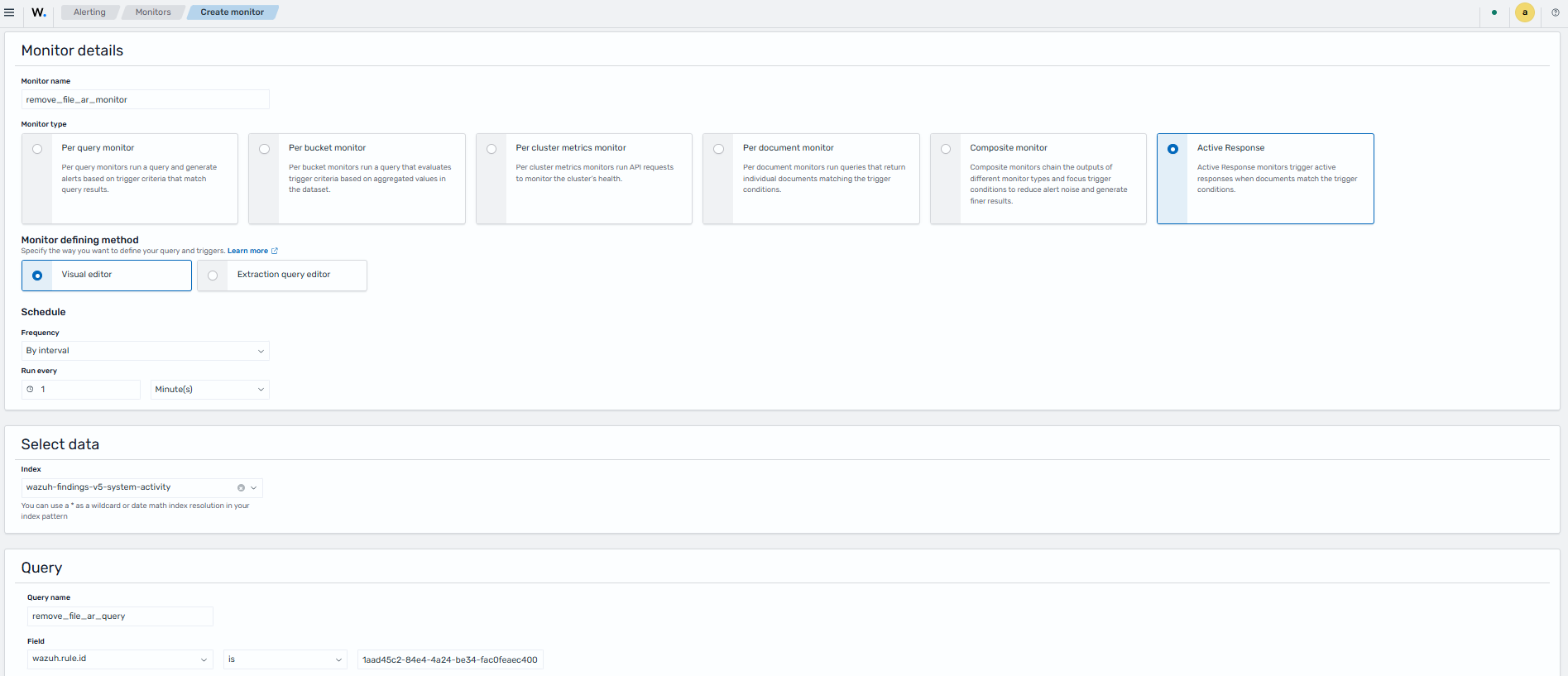
In the Triggers section, click Add trigger and fill the following parameters:
Field
Value
Trigger name
remove_file_ar_triggerSeverity level
(1)HighestSpecify queries or tags
remove_file_ar_query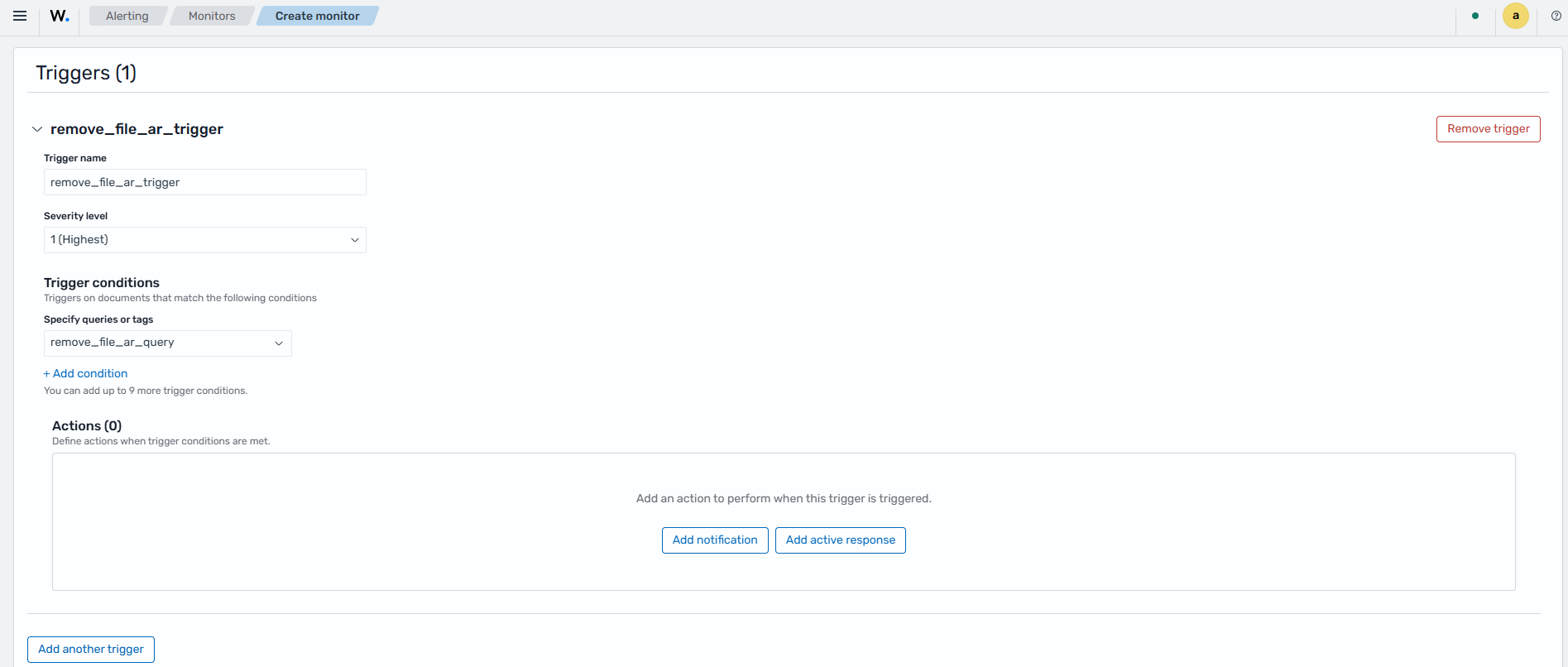
In the Actions sub-section, click Add active response and fill in the following parameters.
Field
Value
Action name
remove_file_ar_actionActive response
[Active response] remove_file_ar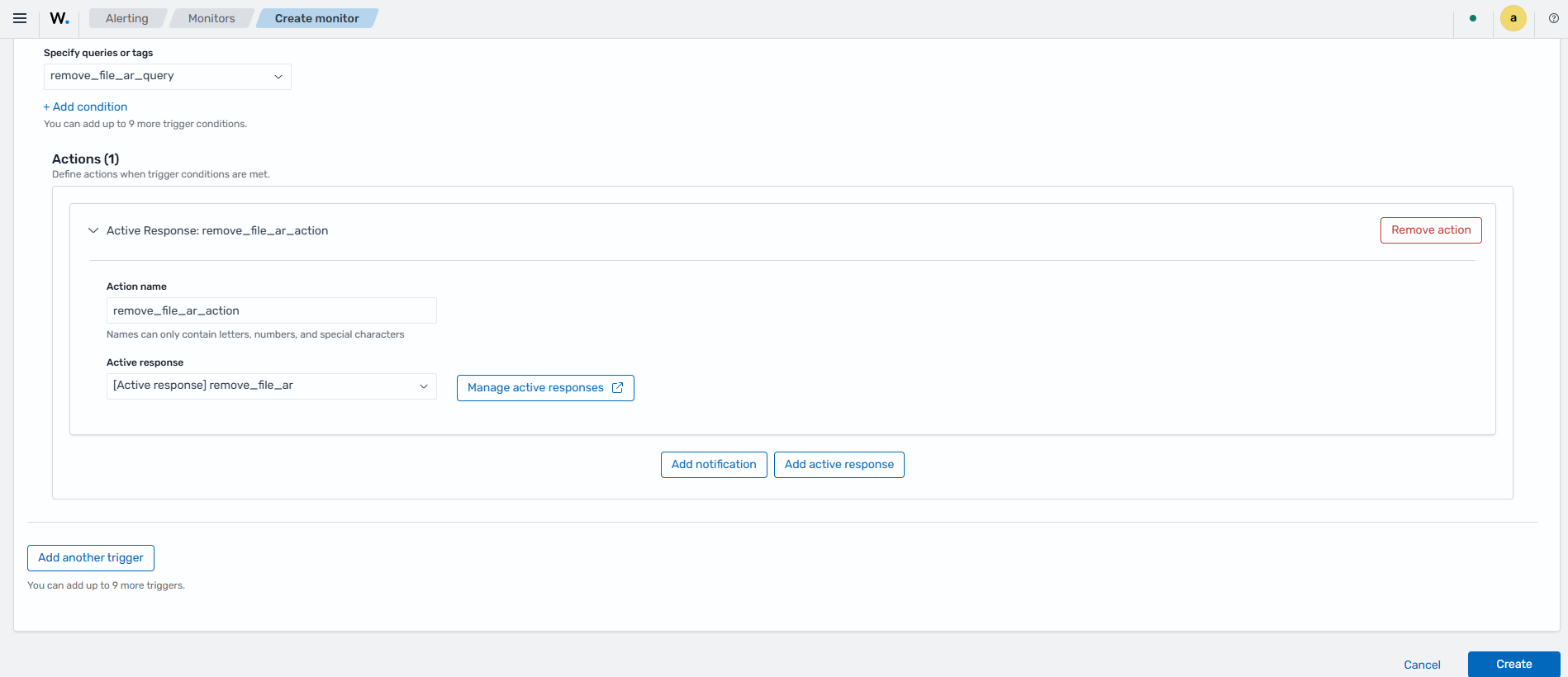
Click Create to save the monitor.
Attack emulation
Use PowerShell to download an EICAR test file to the C:\Users\*\Downloads directory:
> cd "C:\Users\<USER>\Downloads"
> Invoke-WebRequest -Uri https://secure.eicar.org/eicar.com.txt -OutFile eicar.txt
Replace <USER> with your username.
Note
If the monitored endpoint has endpoint protection or antivirus software, such as Microsoft Defender, temporarily disable the relevant real-time protection feature before performing this demonstration. This helps ensure that the test file remains available long enough for the Wazuh active response to detect and remove it.
Visualize the findings
You can visualize the findings in the Wazuh dashboard. To do this, go to the Threat Hunting module and add the filters below in the search bar to query the findings.
event.dataset:wazuh.fim
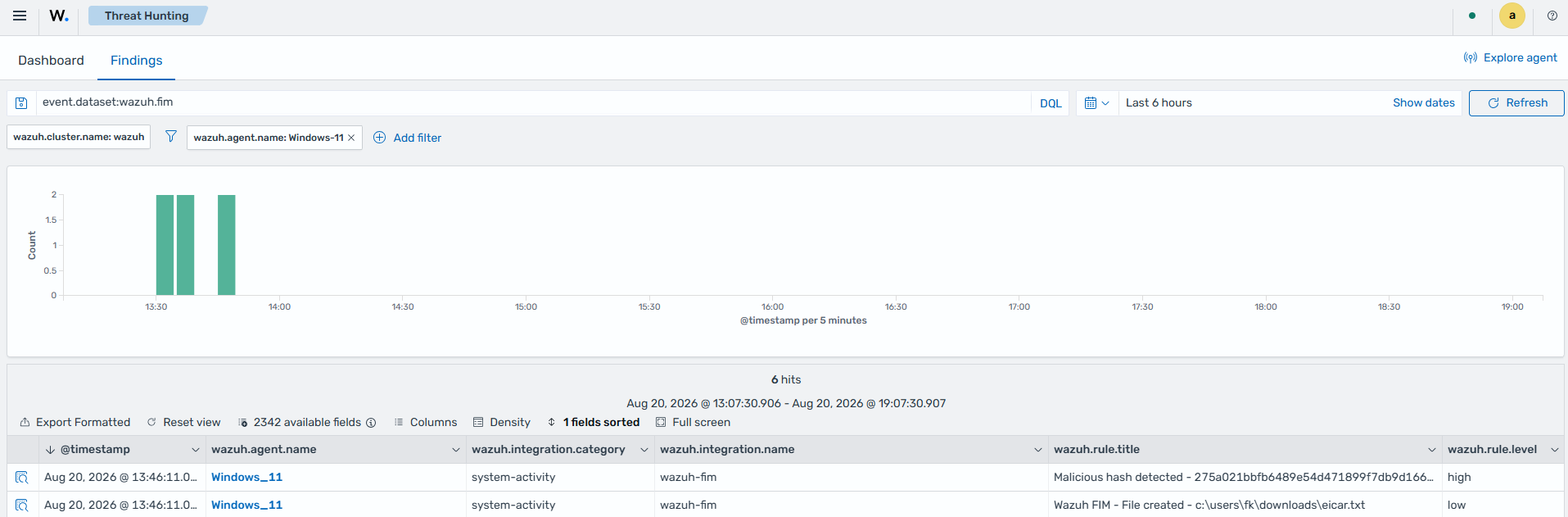
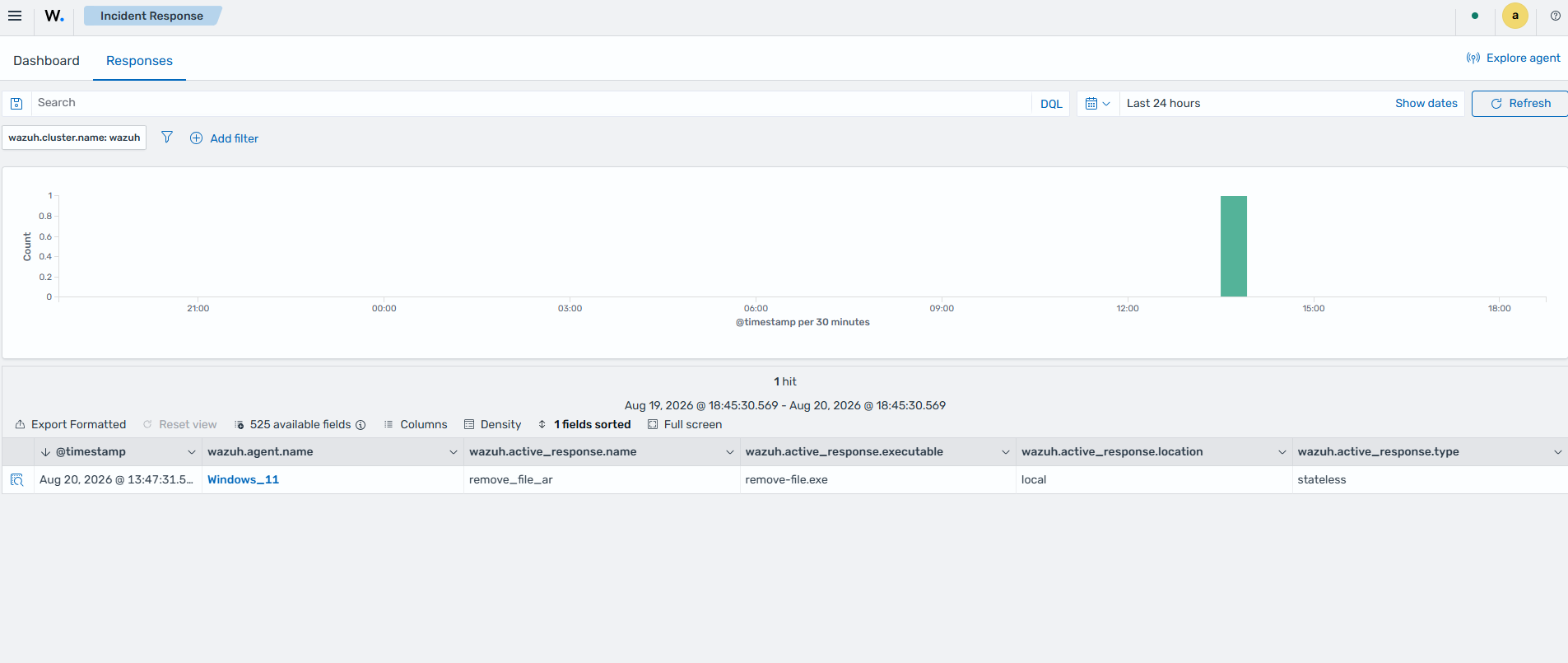
The remove-file active response triggers to remove the malicious file. Navigate to Security operations > Incident Response. Switch to the Responses tab to see details about the triggered Active response.