Microsoft Entra ID
Microsoft Entra ID (ME-ID) is a cloud-based identity and access management service by Microsoft. It provides single sign-on, multifactor authentication, and access to internal and cloud developed applications. In this guide, we integrate the Microsoft Entra ID IdP to authenticate users into the Wazuh platform.
Learn how to create administrator and read-only roles on Microsoft Entra ID and map them with Wazuh in the sections below.
Setup Microsoft Entra ID single sign-on with administrator role
Follow these steps to integrate Microsoft Entra ID IdP with Wazuh for single sign-on and grant administrator role to the authenticated Microsoft Entra ID users on the Wazuh platform:
Note
You may have to request a free trial at least to complete the configuration.
Microsoft Entra ID Configuration
Go to Microsoft Azure Portal, sign up or sign in if you already have an Azure Portal account.
Create an app in Microsoft Entra ID.
Go to Microsoft Entra ID > Enterprise applications > New application and Create your own application.
Select Integrate any other application you don't find in the gallery. Give a name to your application and click Add. In our case, we name this application
wazuh-sso.
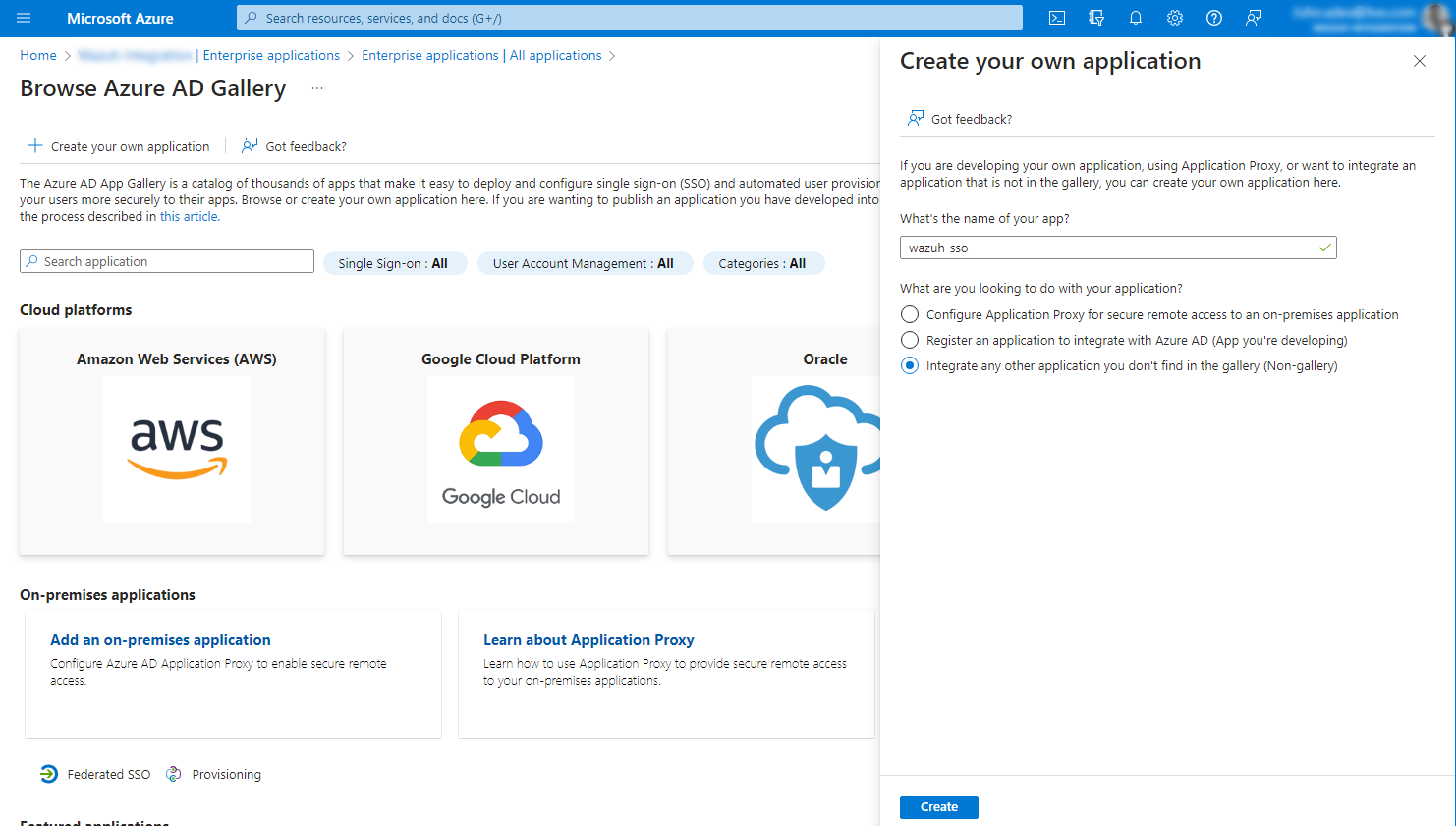
Create a role for your application.
Go back to Microsoft Entra ID and click on App registrations.
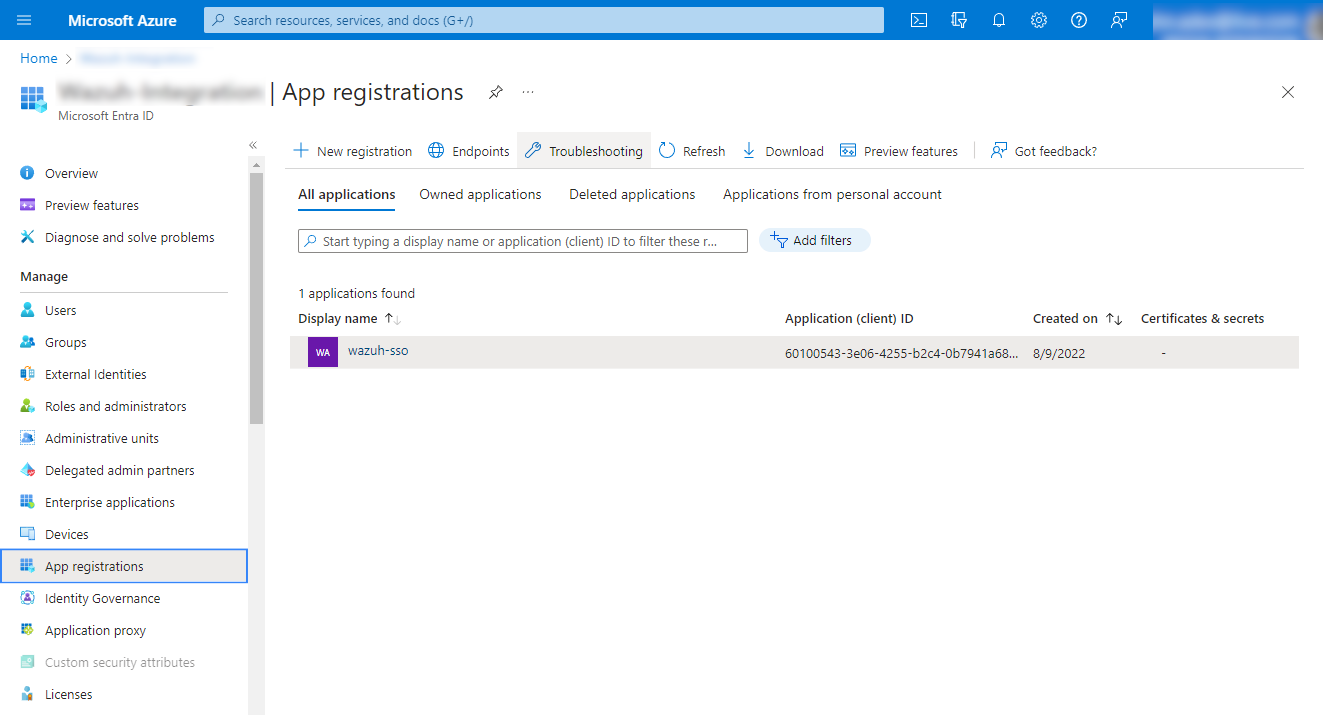
Select your new app under All applications and click App roles > Create app role.
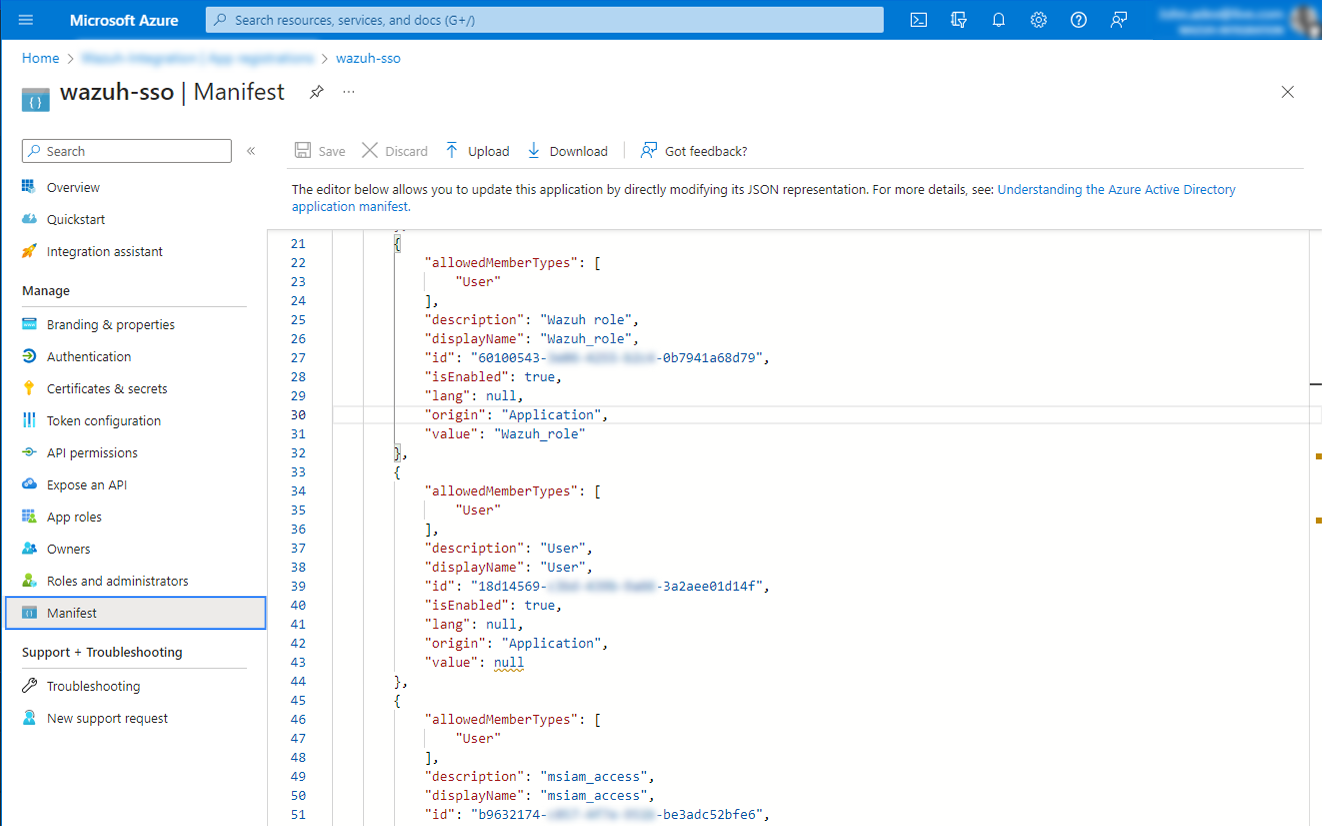
Add the following details to your app role:
Display name: This can be any value that you want. In our case this is
Wazuh_role.Allowed member types: Select Users/Groups.
Value: Defines the name of the role. In this case
Wazuh_role, which will be the backend role for Wazuh role mapping.Description: This can be any value that you want. In our case this is
Wazuh Admin Role.Do you want to enable this app role: Click on the checkmark to enable the role.
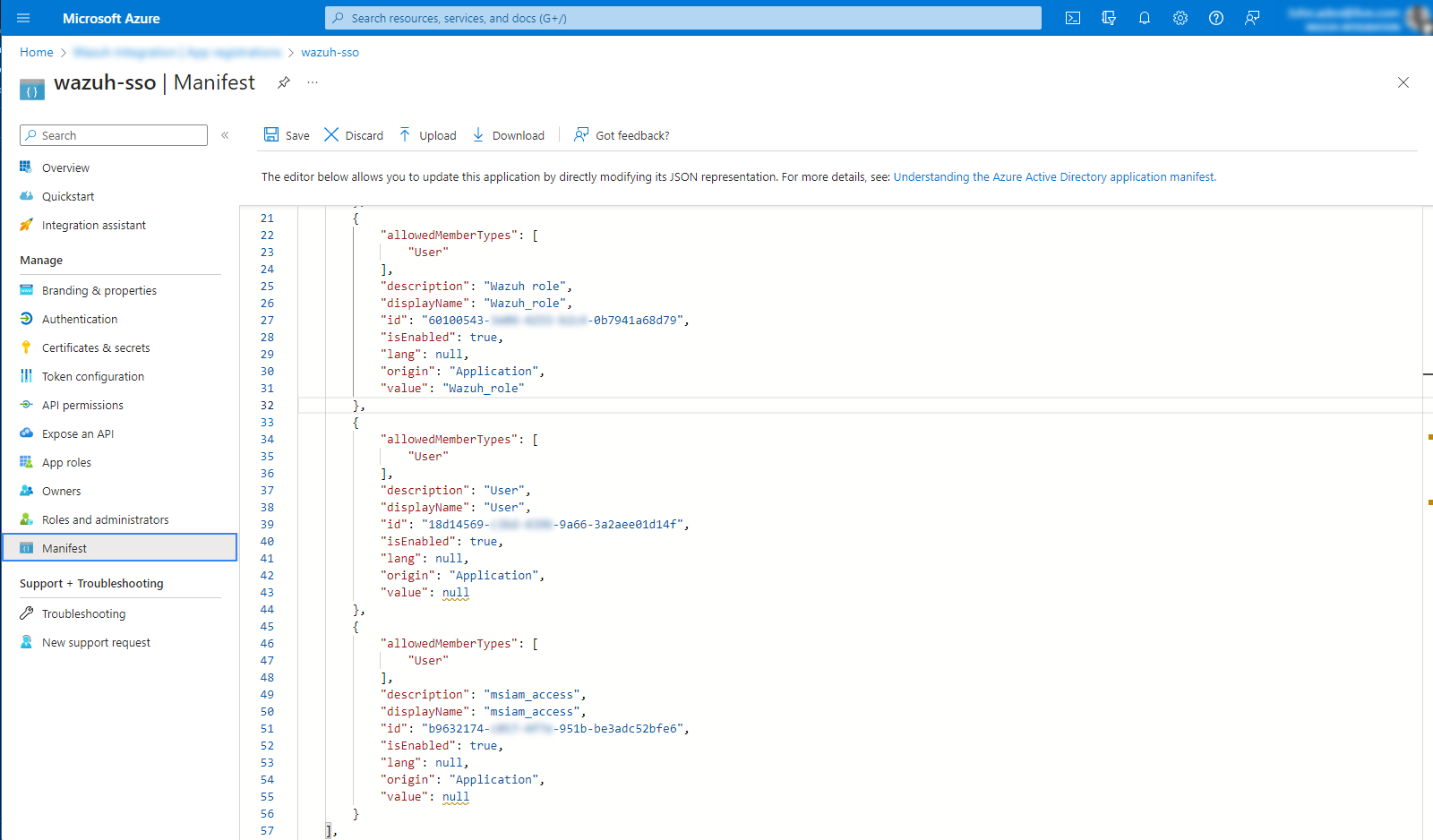
Click Apply to save the changes and proceed to the next step.
Assign a user to the app.
In Microsoft Entra ID, go to Enterprise applications, select your application and then click on Assign users and groups (or Users and Groups in the panel to the left).
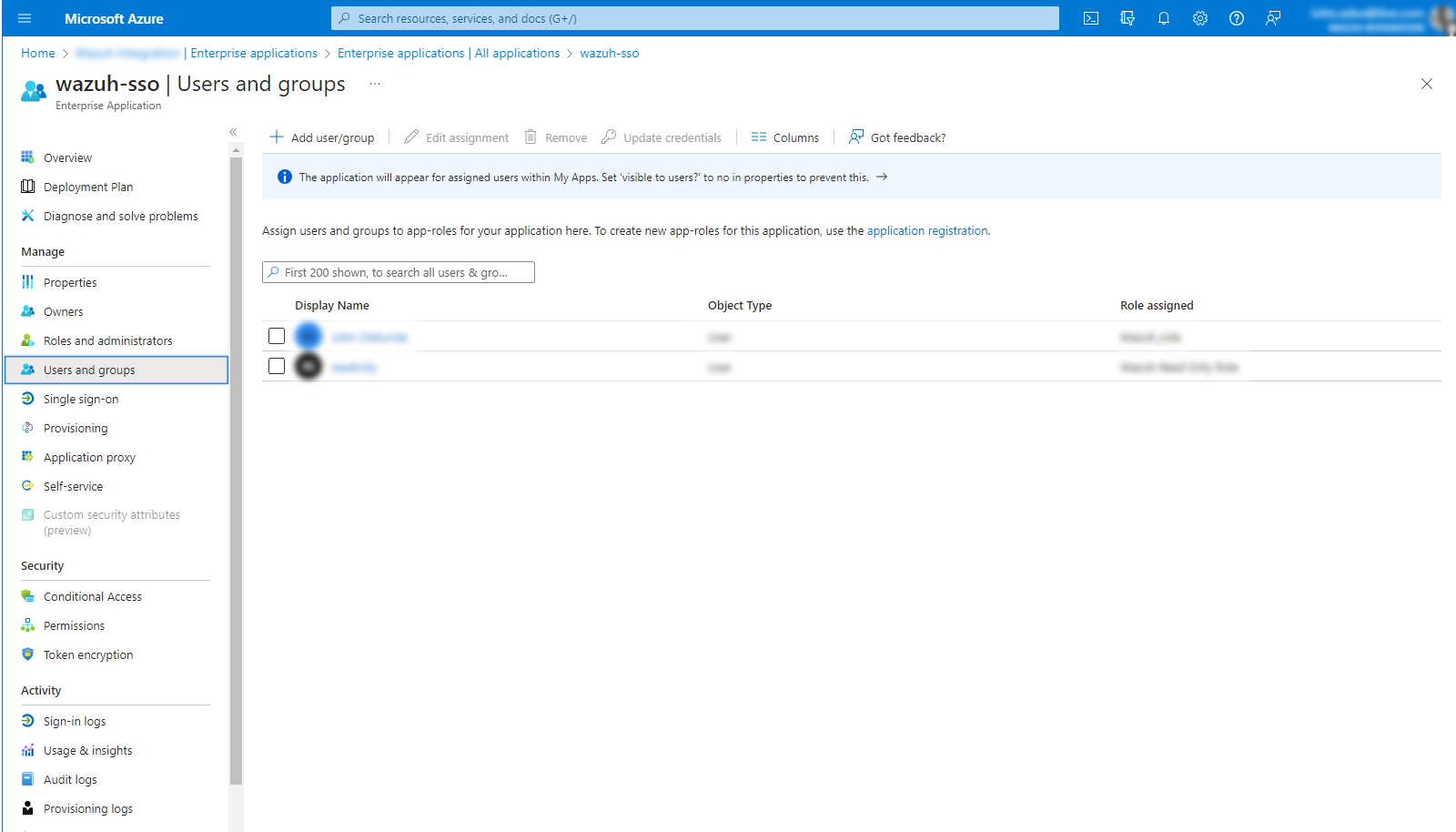
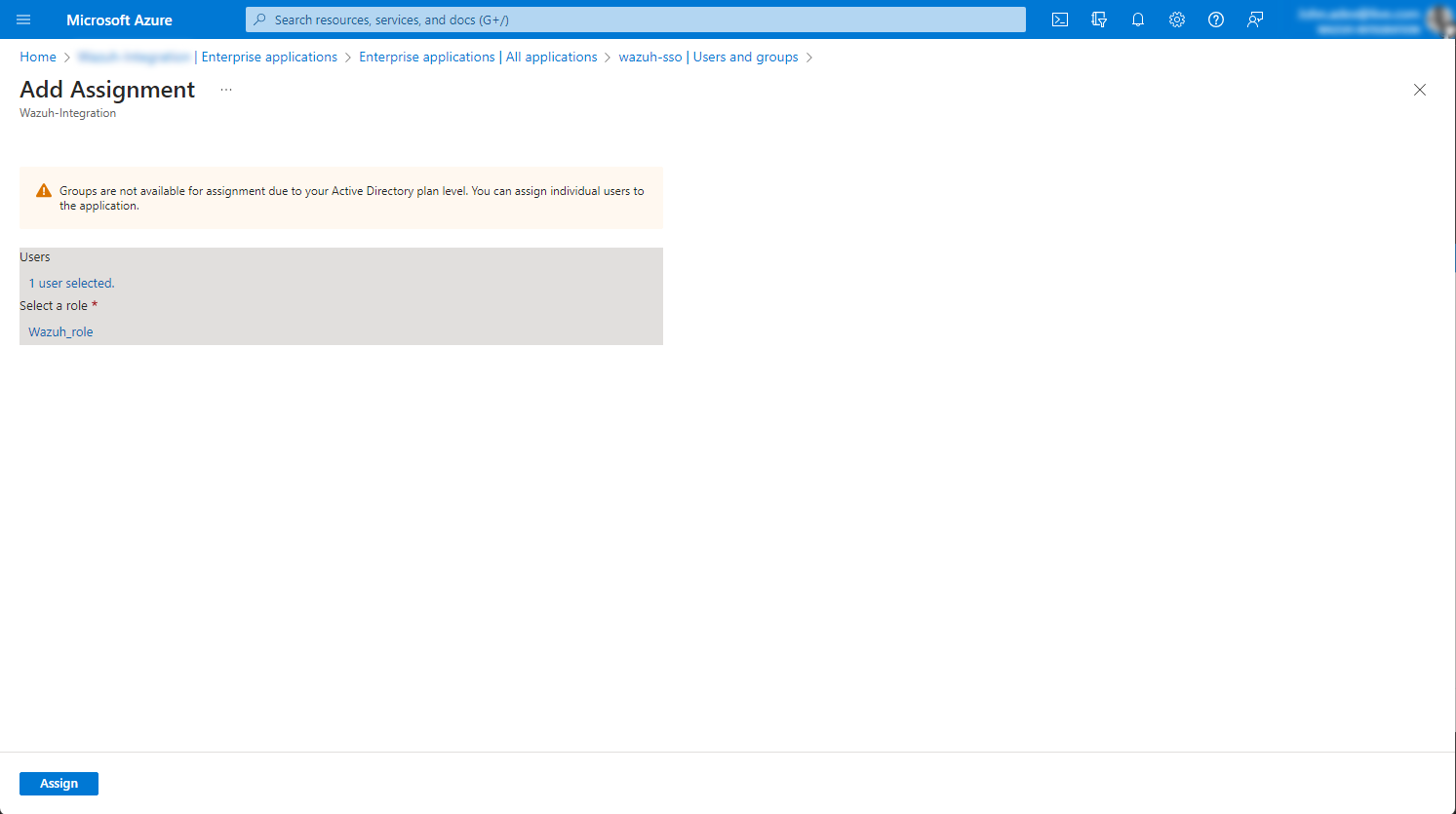
Click on Add user/group, assign a user and select the role we created in App roles. Click on Assign to save the configuration.
Configure Single sign-on.
Go to Enterprise applications, select your application and then click on Set up single sign-on > SAML.
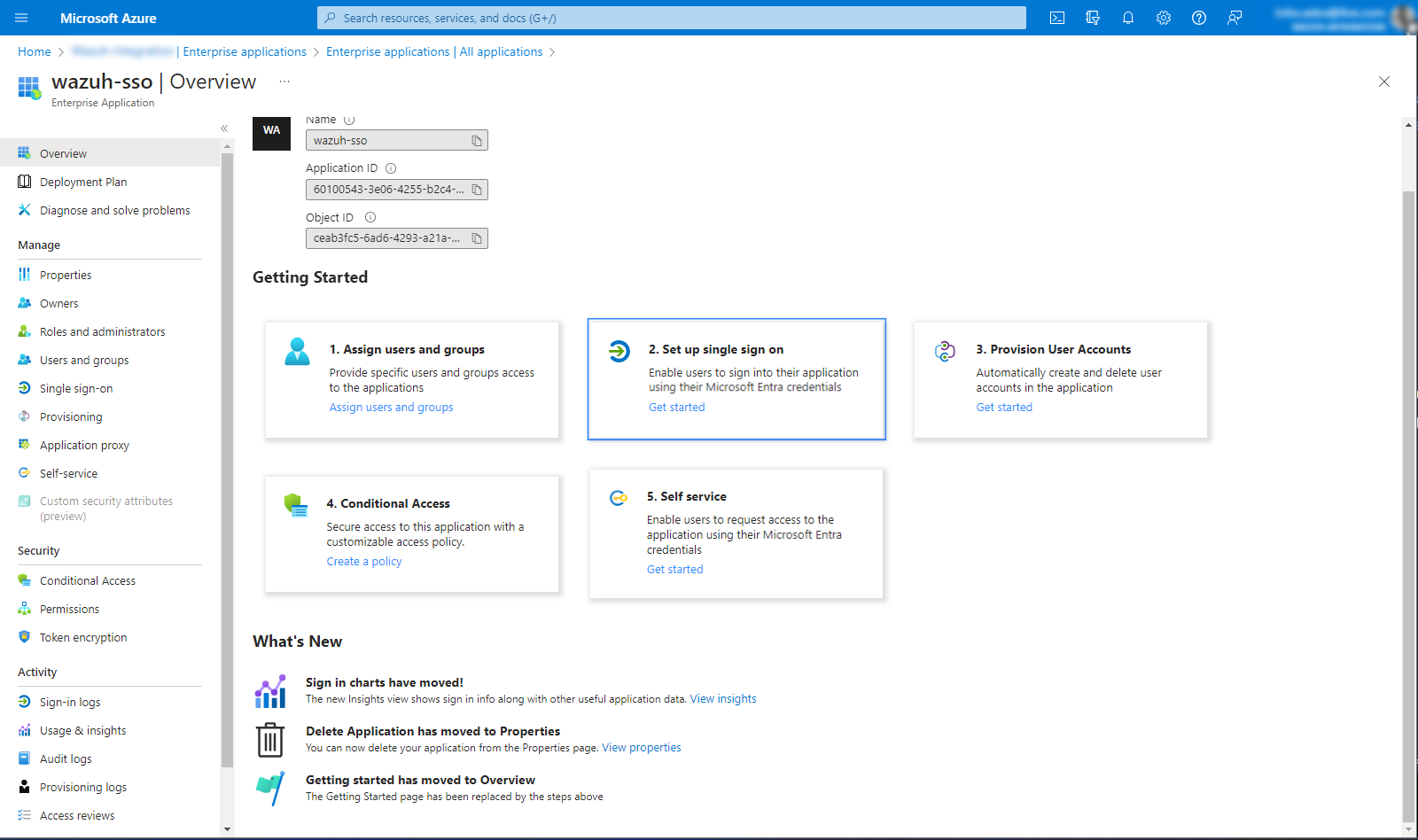
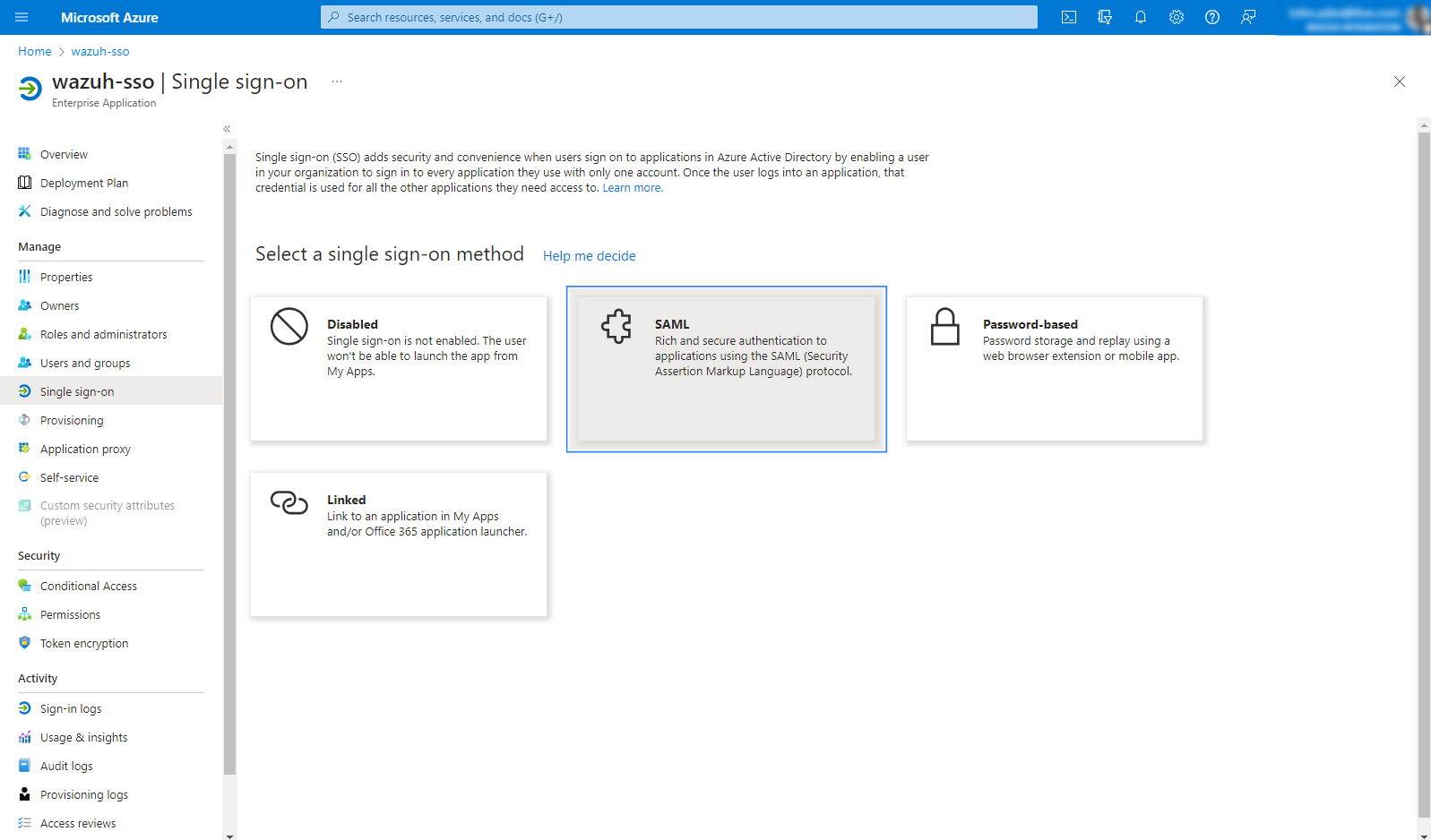
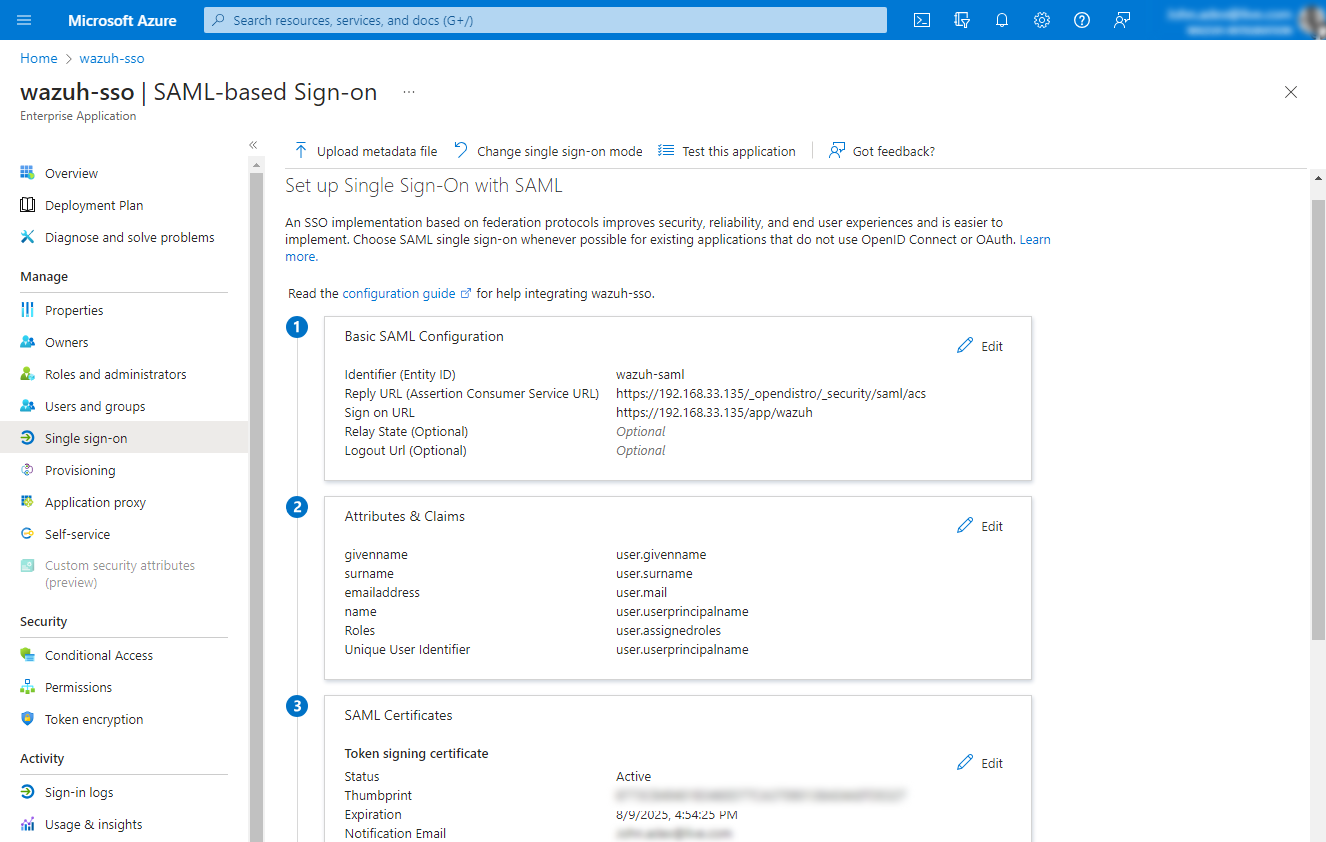
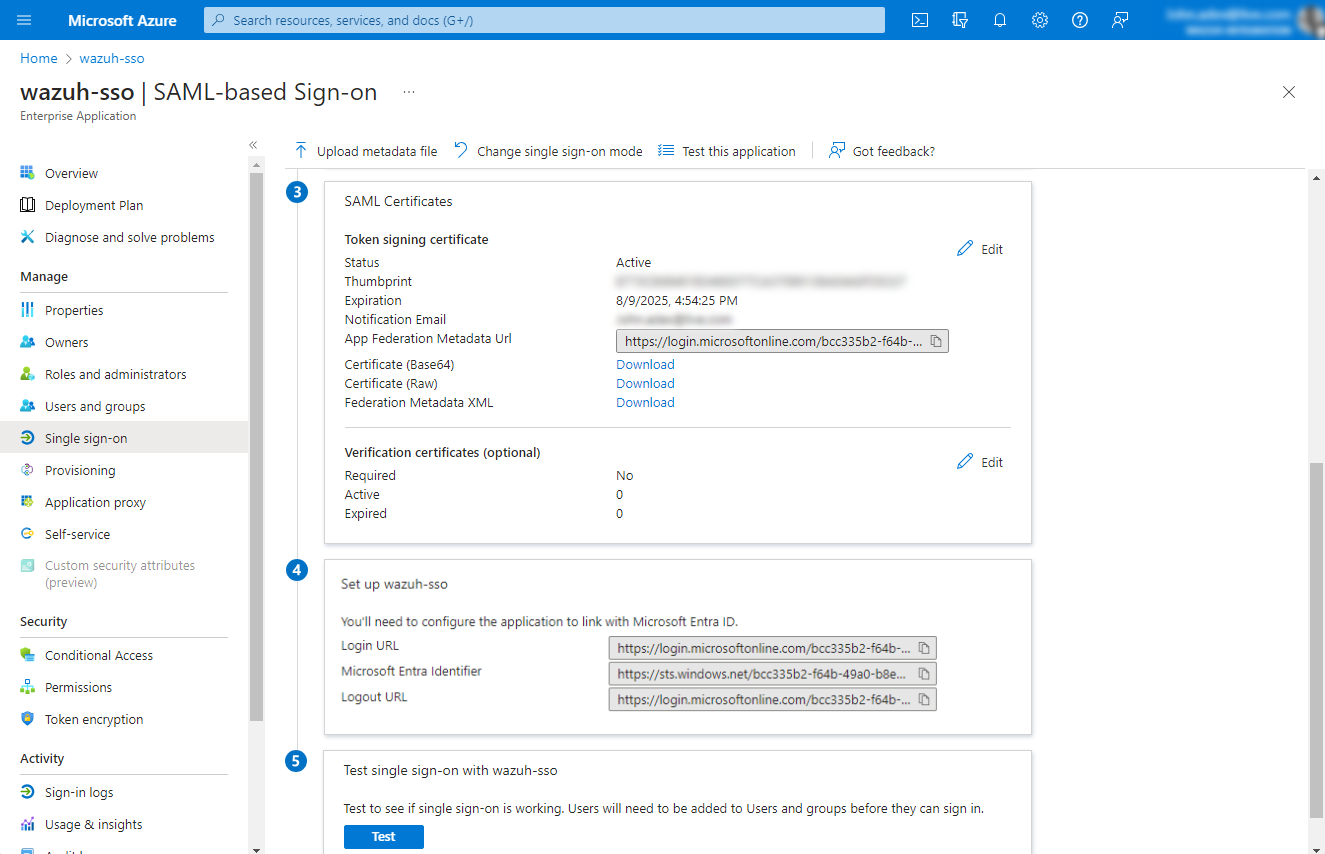
In option 1, under Basic SAML Configuration, click edit and set
wazuh-samlas Identifier (Entity ID),https://<WAZUH_DASHBOARD_URL>/_opendistro/_security/saml/acsas Reply URL (Assertion Consumer Service URL), andhttps://<WAZUH_DASHBOARD_URL>as Sign on URL (Optional). Replace<WAZUH_DASHBOARD_URL>with the corresponding value. Save and proceed to the next step.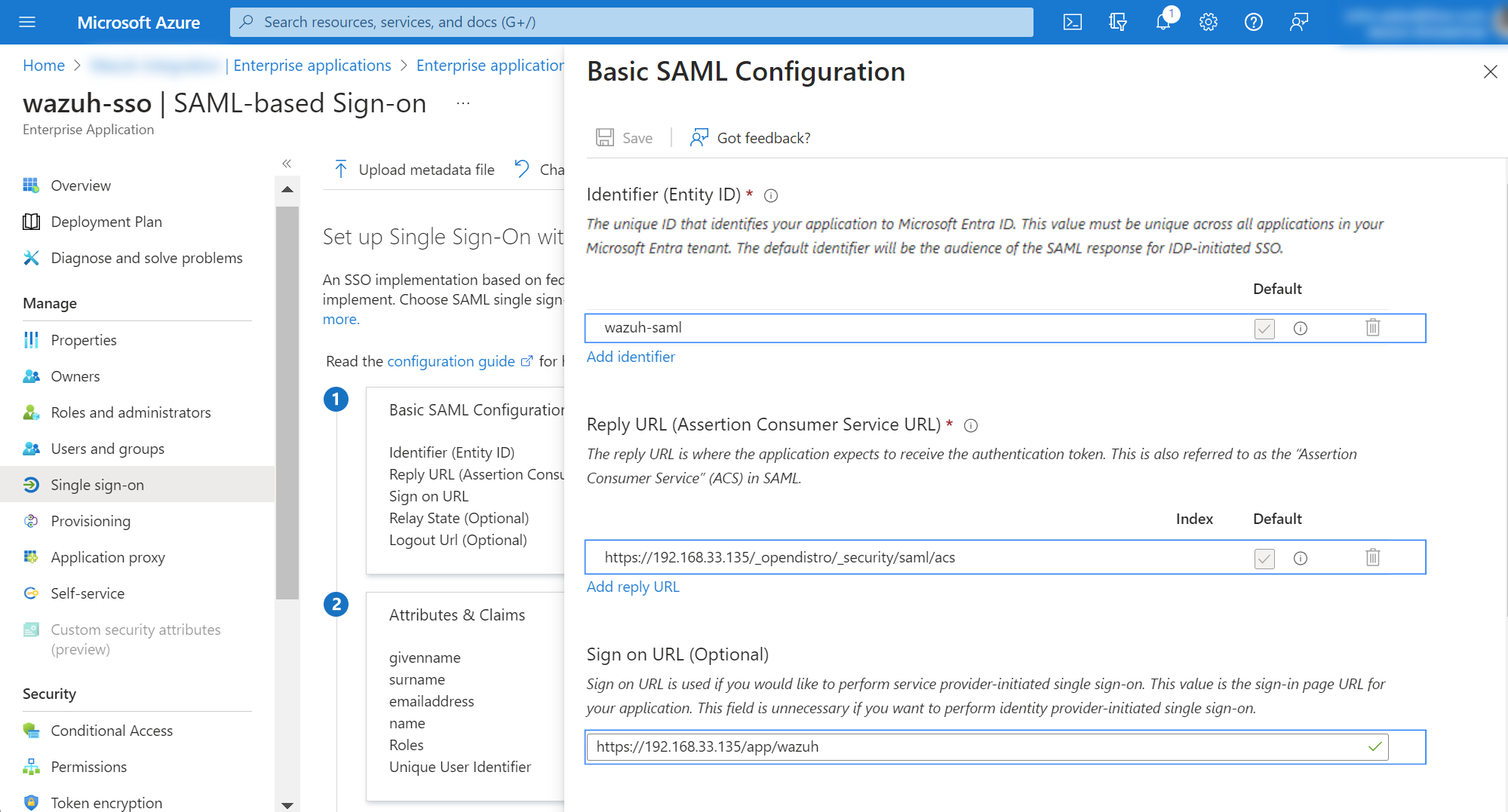
In option 2 under Attributes & Claims, click edit and select Add new claim. Select Roles as the name and user.assignedroles as Source attribute. This claim will be mapped with
roles_keyon the Wazuh indexer configuration.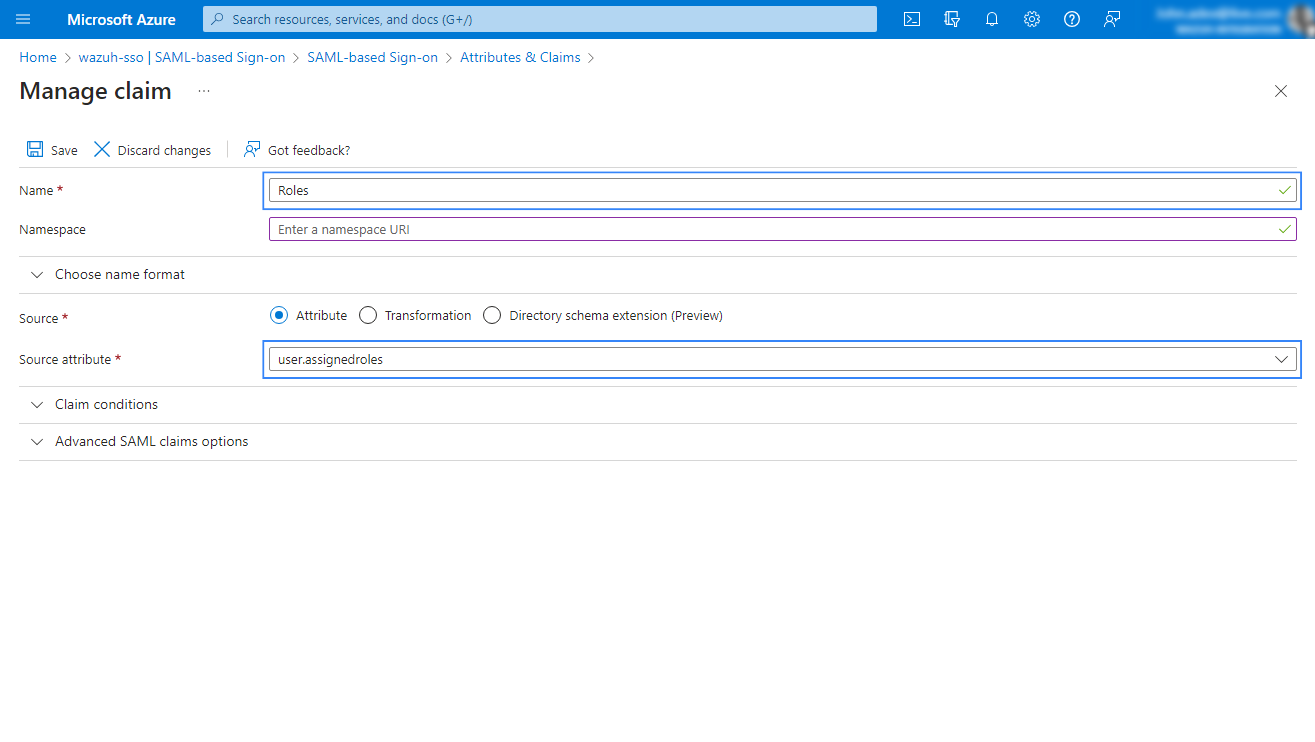
Note the necessary parameters. In the Enterprise applications menu, select your application and then click on Single sign-on. Note some parameters that will be used in the Wazuh indexer configuration.
In option 3 SAML Certificate, the App Federation Metadata Url will be the
idp.metadata_urlin the Wazuh indexer configuration file.In option 4 Set up <YOUR APPLICATION>, the Microsoft Entra ID Identifier will be our
idp.entity_id.
Wazuh indexer configuration
Edit the Wazuh indexer security configuration files. We recommend that you back up these files before you carry out the configuration.
Backup the existing Wazuh indexer security configuration files:
# /usr/share/wazuh-indexer/bin/indexer-security-init.sh --options "-backup /etc/wazuh-indexer/opensearch-security -icl -nhnv"
Generate a 64-character long random key using the following command.
openssl rand -hex 32The output will be used as the
exchange_keyin the/etc/wazuh-indexer/opensearch-security/config.ymlfile.Edit the
/etc/wazuh-indexer/opensearch-security/config.ymlfile and change the following values:Set the
orderinbasic_internal_auth_domainto0and thechallengeflag tofalse.Include a
saml_auth_domainconfiguration under theauthcsection similar to the following:
    authc:
...
      basic_internal_auth_domain:
        description: "Authenticate via HTTP Basic against internal users database"
        http_enabled: true
        transport_enabled: true
        order: 0
        http_authenticator:
          type: "basic"
          challenge: false
        authentication_backend:
          type: "intern"
      saml_auth_domain:
        http_enabled: true
        transport_enabled: false
        order: 1
        http_authenticator:
          type: saml
          challenge: true
          config:
            idp:
              metadata_url: https://login.microsoftonline.com/...
              entity_id: https://sts.windows.net/...
            sp:
              entity_id: wazuh-saml
            kibana_url: https://<WAZUH_DASHBOARD_URL>
            roles_key: Roles
            exchange_key: 'b1d6dd32753374557dcf92e241.......'
        authentication_backend:
          type: noop
Ensure to change the following parameters to their corresponding value:
idp.metadata_urlidp.entity_idsp.entity_idkibana_urlroles_keyexchange_key
Run the
securityadminscript to load the configuration changes made in theconfig.ymlfile.# export JAVA_HOME=/usr/share/wazuh-indexer/jdk/ && bash /usr/share/wazuh-indexer/plugins/opensearch-security/tools/securityadmin.sh -f /etc/wazuh-indexer/opensearch-security/config.yml -icl -key /etc/wazuh-indexer/certs/admin-key.pem -cert /etc/wazuh-indexer/certs/admin.pem -cacert /etc/wazuh-indexer/certs/root-ca.pem -h localhost -nhnv
The
-hflag specifies the hostname or the IP address of the Wazuh indexer node. Note that this command uses localhost, set your Wazuh indexer address if necessary.The command output must be similar to the following:
Security Admin v7
Will connect to localhost:9200 ... done
Connected as "CN=admin,OU=Wazuh,O=Wazuh,L=California,C=US"
OpenSearch Version: 2.19.4
Contacting opensearch cluster 'opensearch' and wait for YELLOW clusterstate ...
Clustername: wazuh-cluster
Clusterstate: GREEN
Number of nodes: 1
Number of data nodes: 1
.opendistro_security index already exists, so we do not need to create one.
Populate config from /home/wazuh-user
Will update '/config' with /etc/wazuh-indexer/opensearch-security/config.yml
   SUCC: Configuration for 'config' created or updated
SUCC: Expected 1 config types for node {"updated_config_types":["config"],"updated_config_size":1,"message":null} is 1 (["config"]) due to: null
Done with success
Edit the
/etc/wazuh-indexer/opensearch-security/roles_mapping.ymlfile and change the following values:Configure the
roles_mapping.ymlfile to map the role we have in Microsoft Entra ID to the appropriate Wazuh indexer role, in our case, we map it to theall_accessrole:all_access: reserved: false hidden: false backend_roles: - "admin" - "Wazuh_role" description: "Maps admin to all_access"
Run the
securityadminscript to load the configuration changes made in theroles_mapping.ymlfile.# export JAVA_HOME=/usr/share/wazuh-indexer/jdk/ && bash /usr/share/wazuh-indexer/plugins/opensearch-security/tools/securityadmin.sh -f /etc/wazuh-indexer/opensearch-security/roles_mapping.yml -icl -key /etc/wazuh-indexer/certs/admin-key.pem -cert /etc/wazuh-indexer/certs/admin.pem -cacert /etc/wazuh-indexer/certs/root-ca.pem -h 127.0.0.1 -nhnv
The
-hflag specifies the hostname or the IP address of the Wazuh indexer node. Note that this command uses localhost, set your Wazuh indexer address if necessary.The command output must be similar to the following:
Security Admin v7
Will connect to 127.0.0.1:9200 ... done
Connected as "CN=admin,OU=Wazuh,O=Wazuh,L=California,C=US"
OpenSearch Version: 2.10.0
Contacting opensearch cluster 'opensearch' and wait for YELLOW clusterstate ...
Clustername: wazuh-cluster
Clusterstate: GREEN
Number of nodes: 1
Number of data nodes: 1
.opendistro_security index already exists, so we do not need to create one.
Populate config from /etc/wazuh-indexer/opensearch-security
Will update '/rolesmapping' with /etc/wazuh-indexer/opensearch-security/roles_mapping.yml
   SUCC: Configuration for 'rolesmapping' created or updated
SUCC: Expected 1 config types for node {"updated_config_types":["rolesmapping"],"updated_config_size":1,"message":null} is 1 (["rolesmapping"]) due to: null
Done with success
Wazuh dashboard configuration
Verify that
run_asis set totruein the/usr/share/wazuh-dashboard/data/wazuh/config/wazuh.ymlconfiguration file. This is required to create a role mapping in the Wazuh dashboard, ensuring the backend role provided by the IdP is correctly mapped to the corresponding Wazuh role.hosts: - default: url: https://localhost port: 55000 username: wazuh-wui password: "<WAZUH_WUI_PASSWORD>" run_as: true
Click ☰ to open the menu on the Wazuh dashboard, go to Server management > Security, and then Roles mapping to open the page.
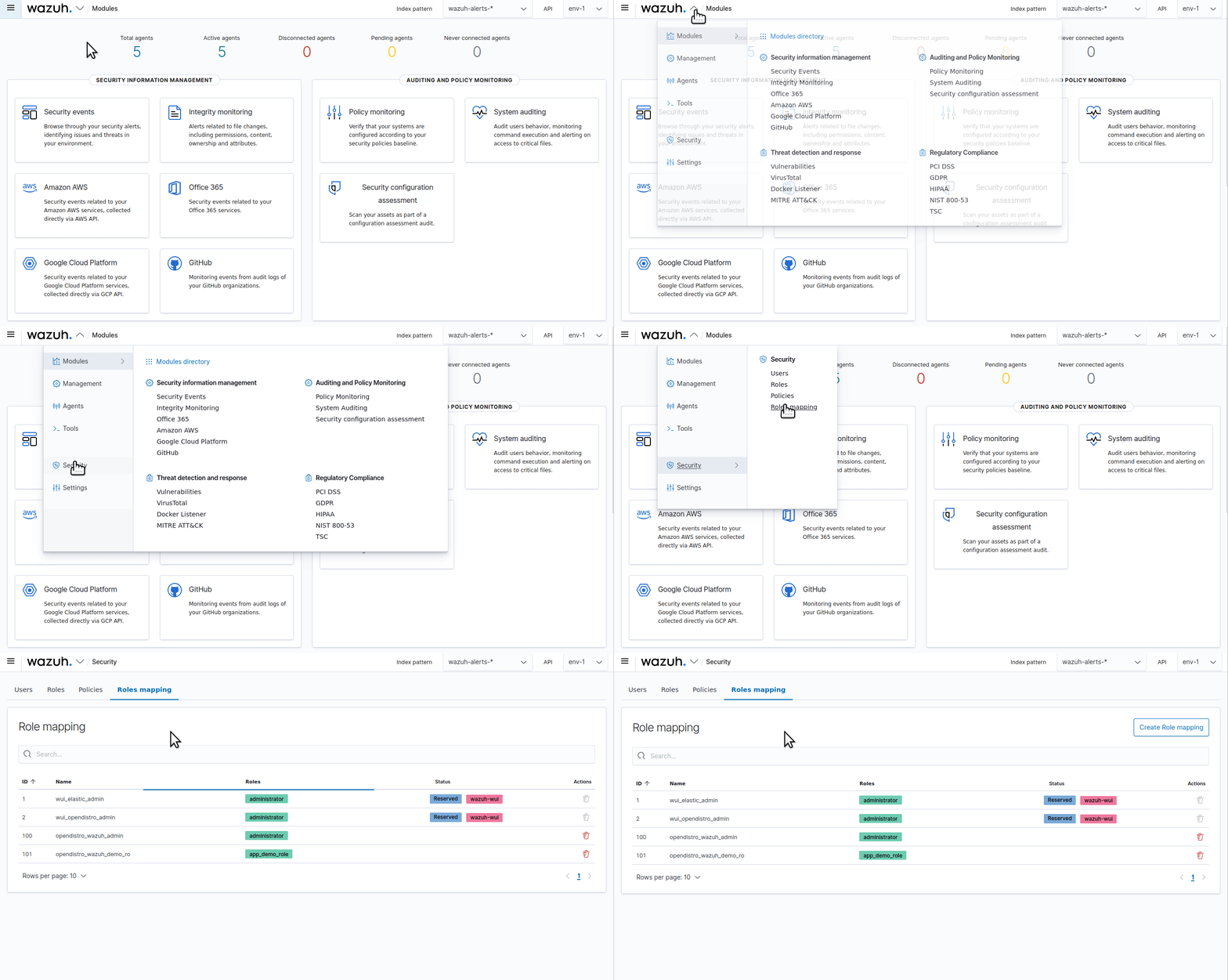
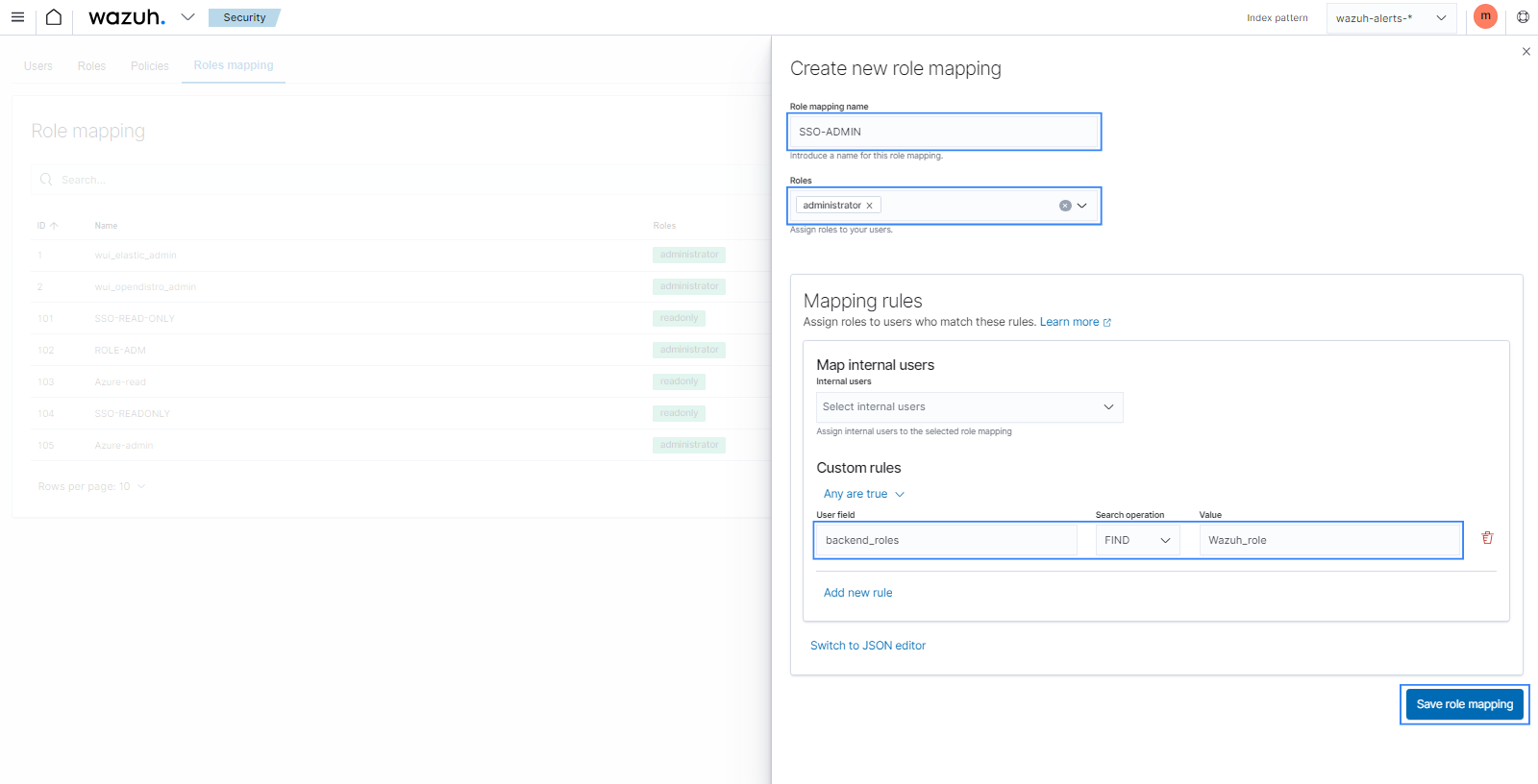
Click Create Role mapping and complete the empty fields with the following parameters:
Role mapping name: Assign a name to the role mapping.
Roles: Select
administrator.Custom rules: Click Add new rule to expand this field.
User field:
backend_rolesSearch operation:
FINDValue: Assign the backend role from the Microsoft Entra ID configuration, in our case, this is
Wazuh_role.Click Save role mapping to save and map the backend role with Wazuh as administrator.
Edit the Wazuh dashboard configuration file. Add these configurations to
/etc/wazuh-dashboard/opensearch_dashboards.yml. We recommend that you back up these files before you carry out the configuration.opensearch_security.auth.multiple_auth_enabled: true opensearch_security.auth.type: ["basicauth","saml"] server.xsrf.allowlist: ["/_opendistro/_security/saml/acs", "/_opendistro/_security/saml/logout", "/_opendistro/_security/saml/acs/idpinitiated"]
Restart the Wazuh dashboard service using this command:
# systemctl restart wazuh-dashboard
Test the configuration, go to your Wazuh dashboard URL and log in with your Microsoft account.
Setup Microsoft Entra ID single sign-on with read-only role
Follow these steps to integrate Microsoft Entra ID IdP with Wazuh for single sign-on and grant read-only role to the authenticated Microsoft Entra ID users on the Wazuh platform:
Note
You may have to request a free trial at least to complete the configuration.
Microsoft Entra ID Configuration
Go to Microsoft Azure Portal, sign up or sign in if you already have an Azure Portal account.
Create an app in Microsoft Entra ID.
Go to Microsoft Entra ID > Enterprise applications > New application and Create your own application.
Select Integrate any other application you don't find in the gallery. Give a name to your application and click Add. In our case, we name this application
wazuh-sso.
Create a role for your application.
Go back to Microsoft Entra ID and click on App registrations.
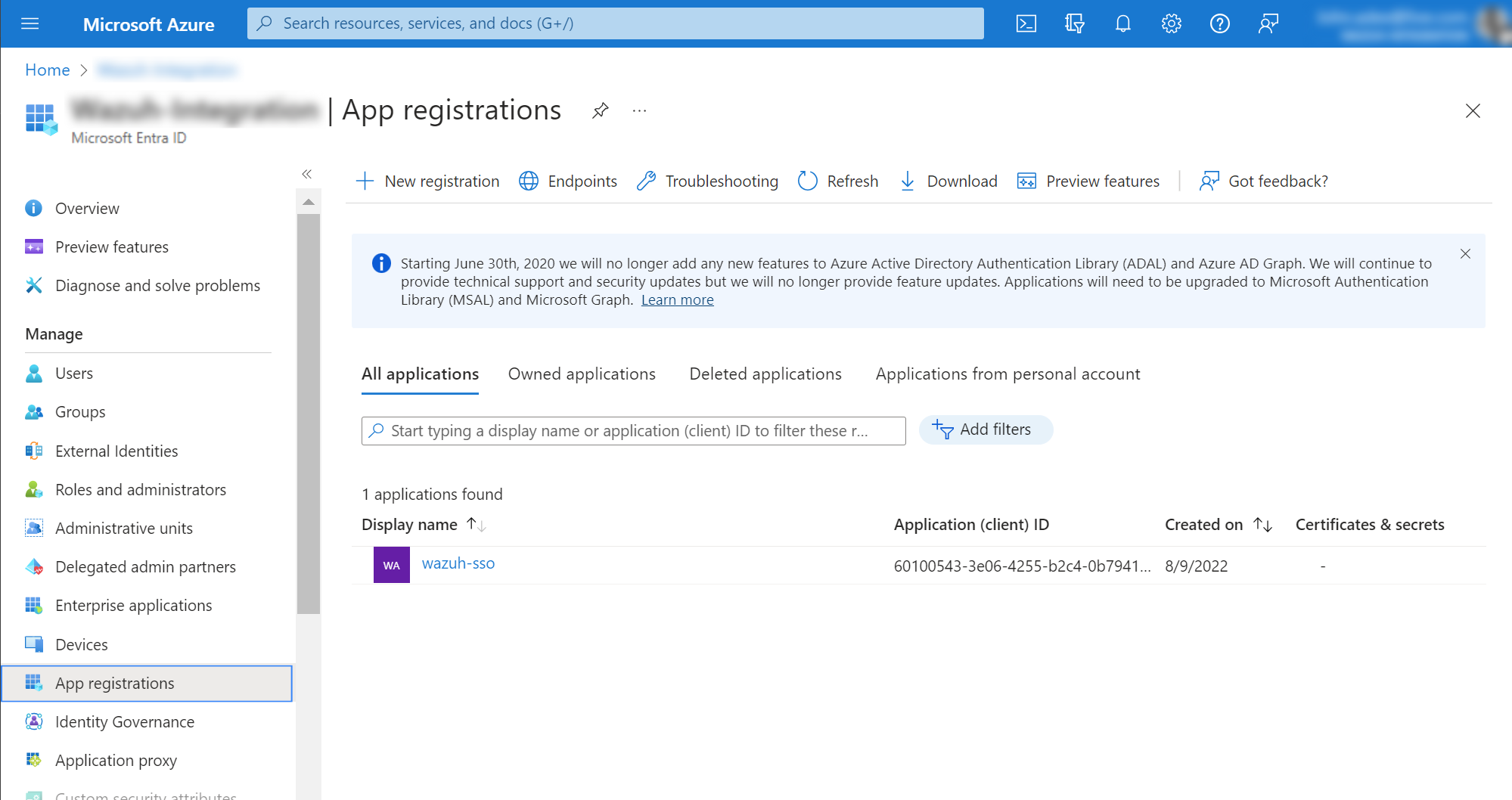
Select your new app under All applications and click App roles > Create app role.
Add the following details to your app role:
Display name: This can be any value that you want. In our case, this is
Wazuh Read Only Role.Allowed member types: Select
Users/Groups.Value: defines the name of the role. In this case
wazuh-readonly, which will be the backend role for Wazuh role mapping.Description: This can be any value that you want. In our case, this is
Wazuh Read Only Role.Do you want to enable this app role: Click on the checkmark to enable the role.
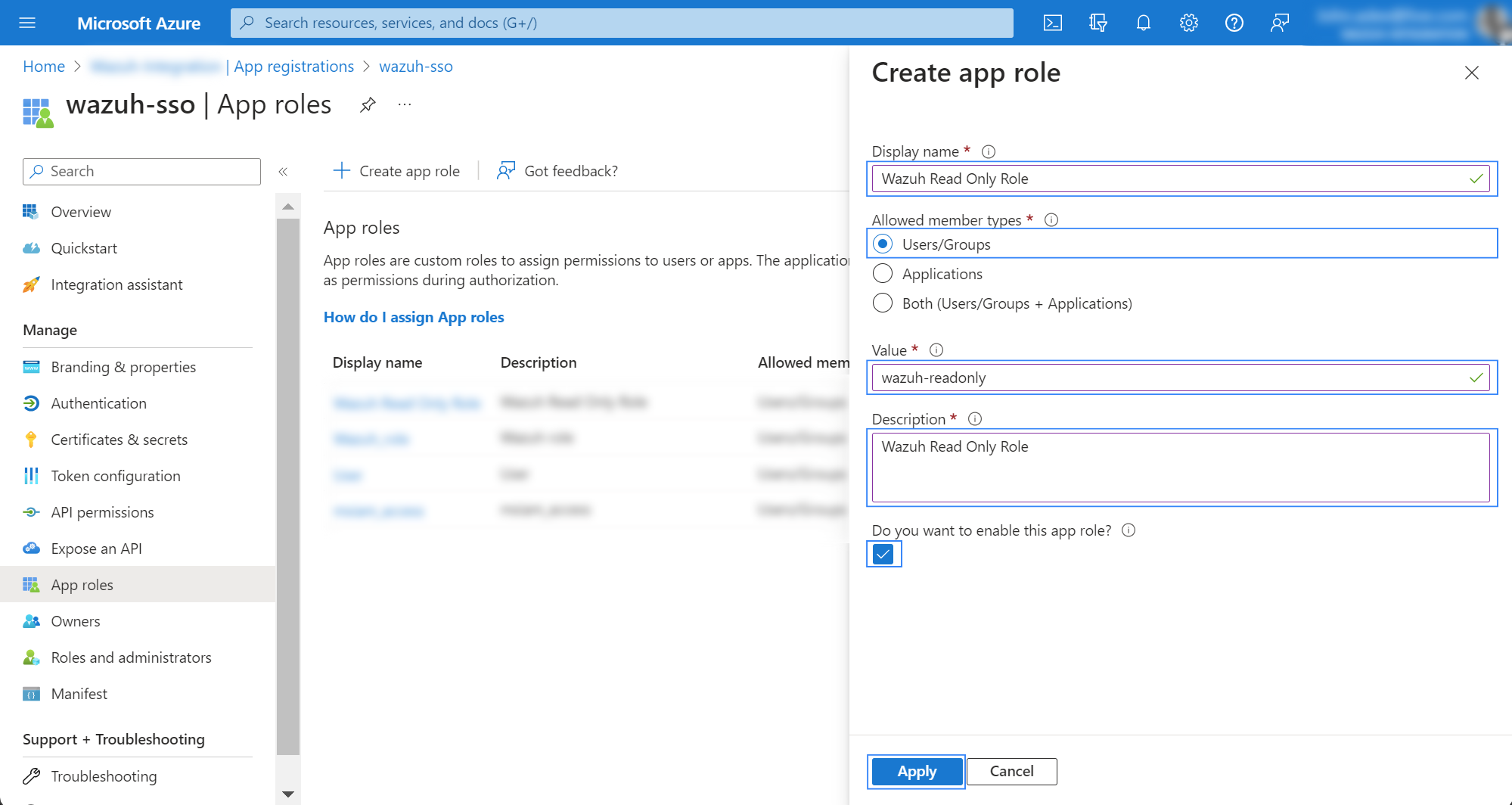
Click Apply to save the changes and proceed to the next step.
Assign a user to the app.
In Microsoft Entra ID, go to Enterprise applications, select your application and then click on Assign users and groups (or Users and Groups in the panel to the left).
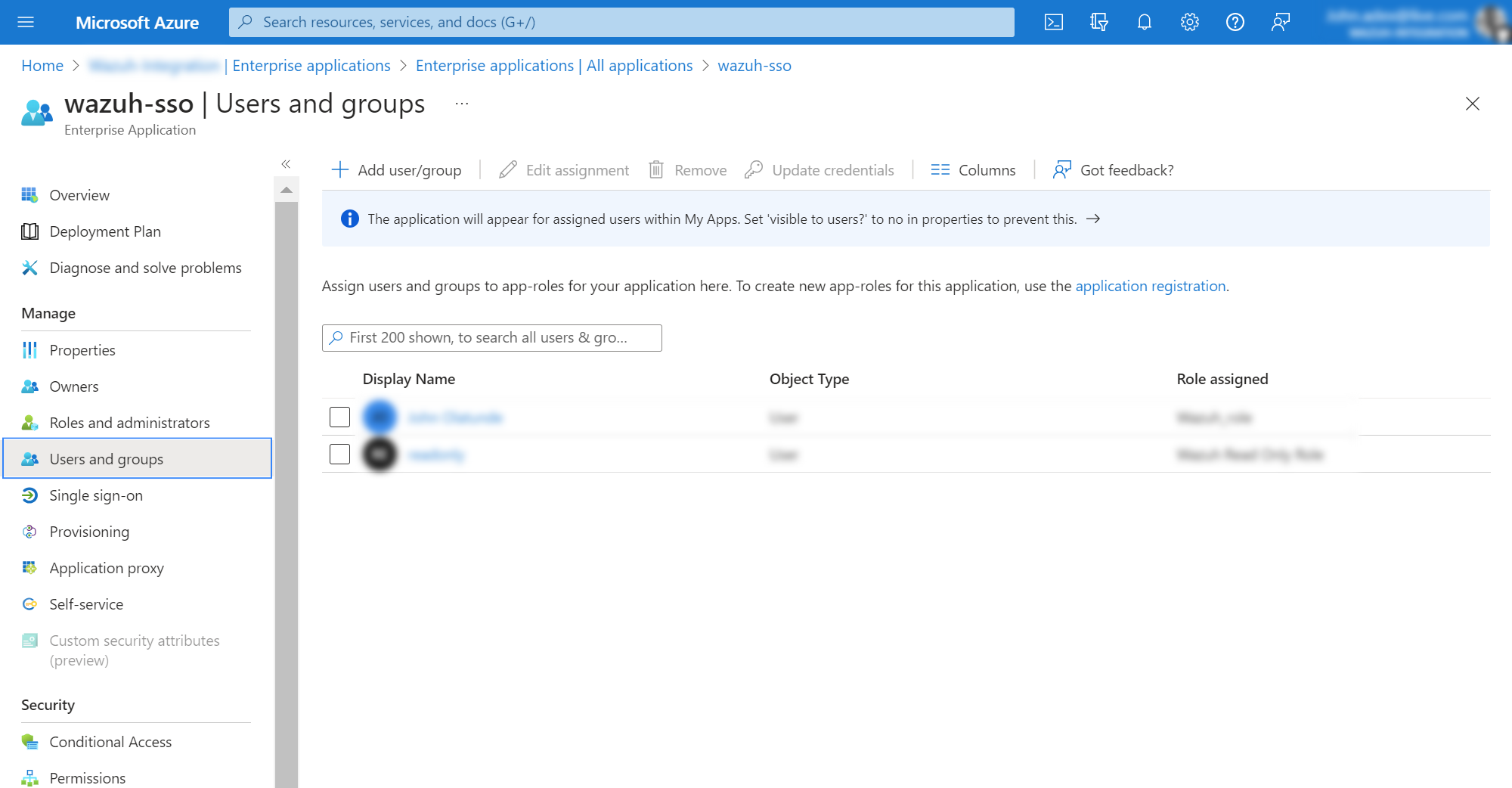
Click on Add user/group, assign a user and select the role we created in App roles. Click on Assign to save the configuration.
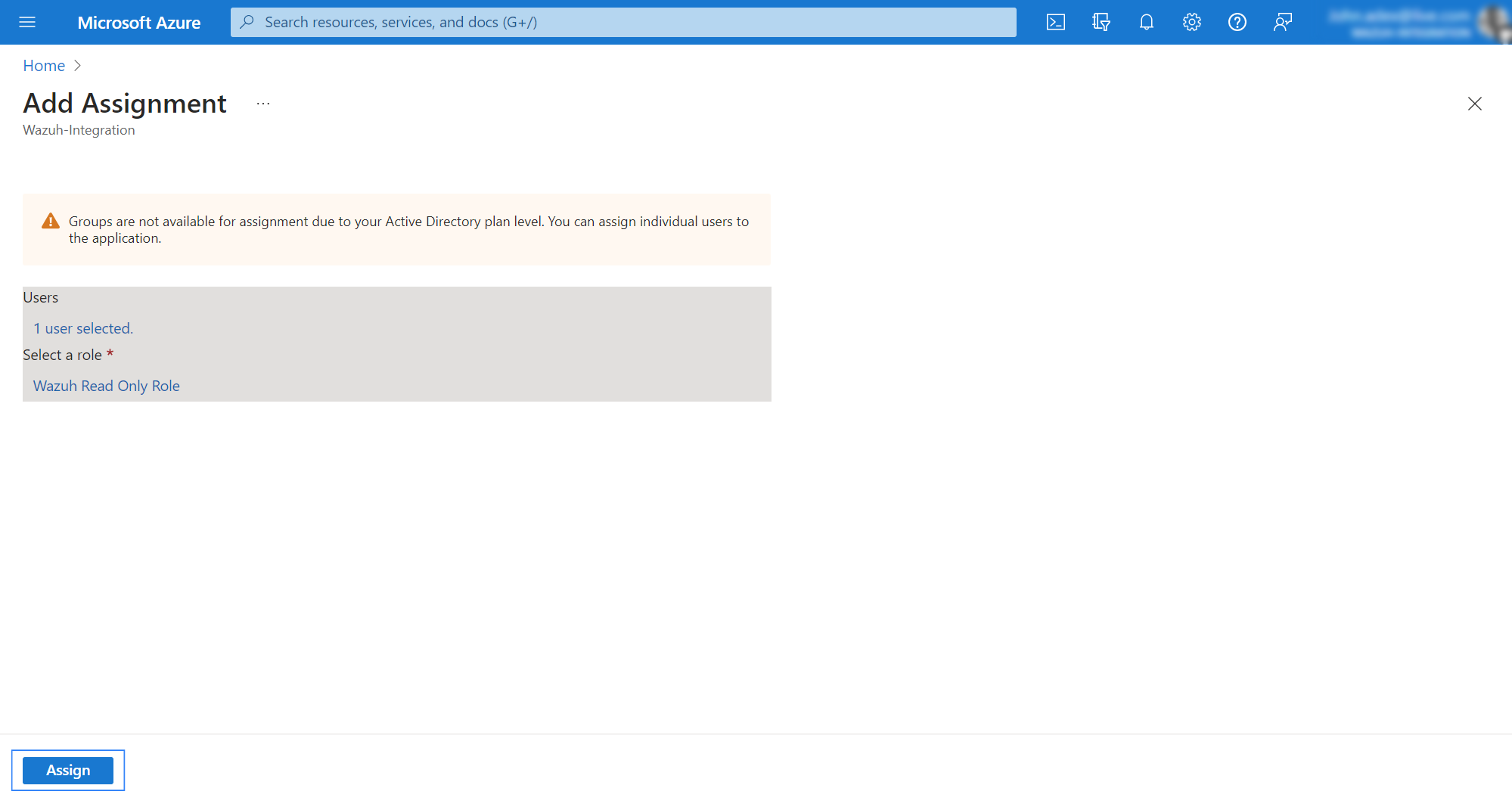
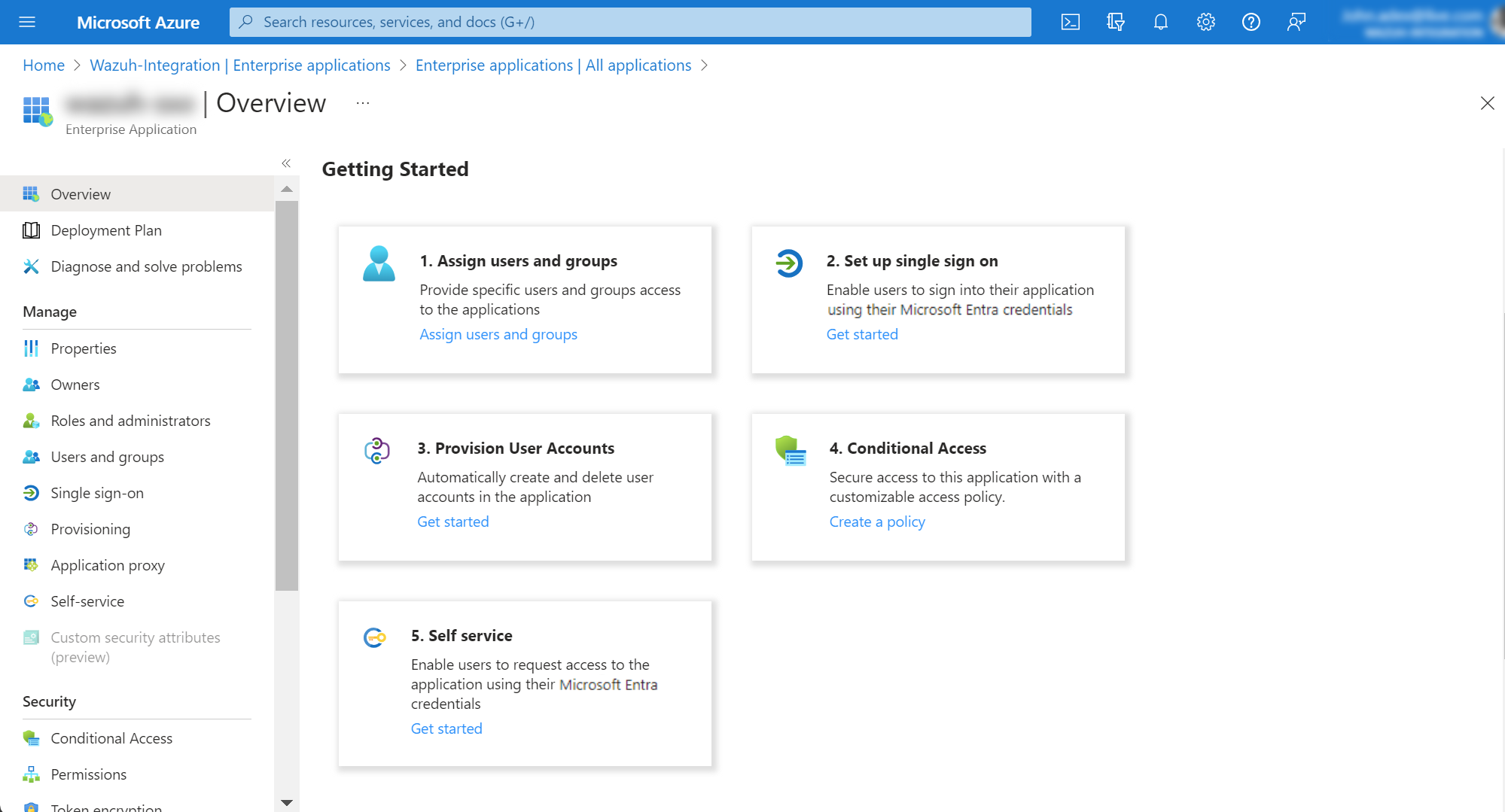
Configure Single sign-on.
Go to Enterprise applications, select your application and then click on Set up single sign-on > SAML.
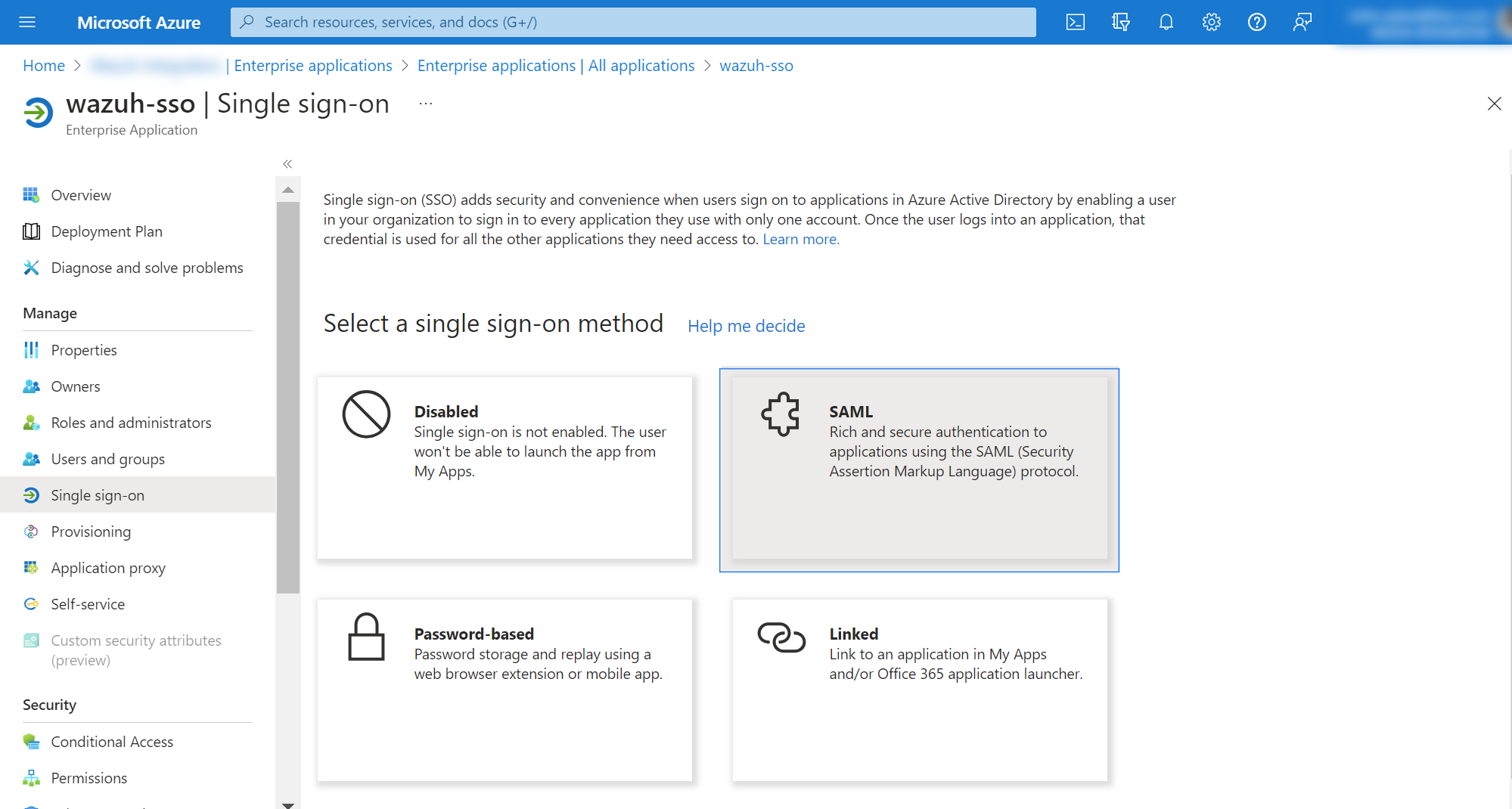
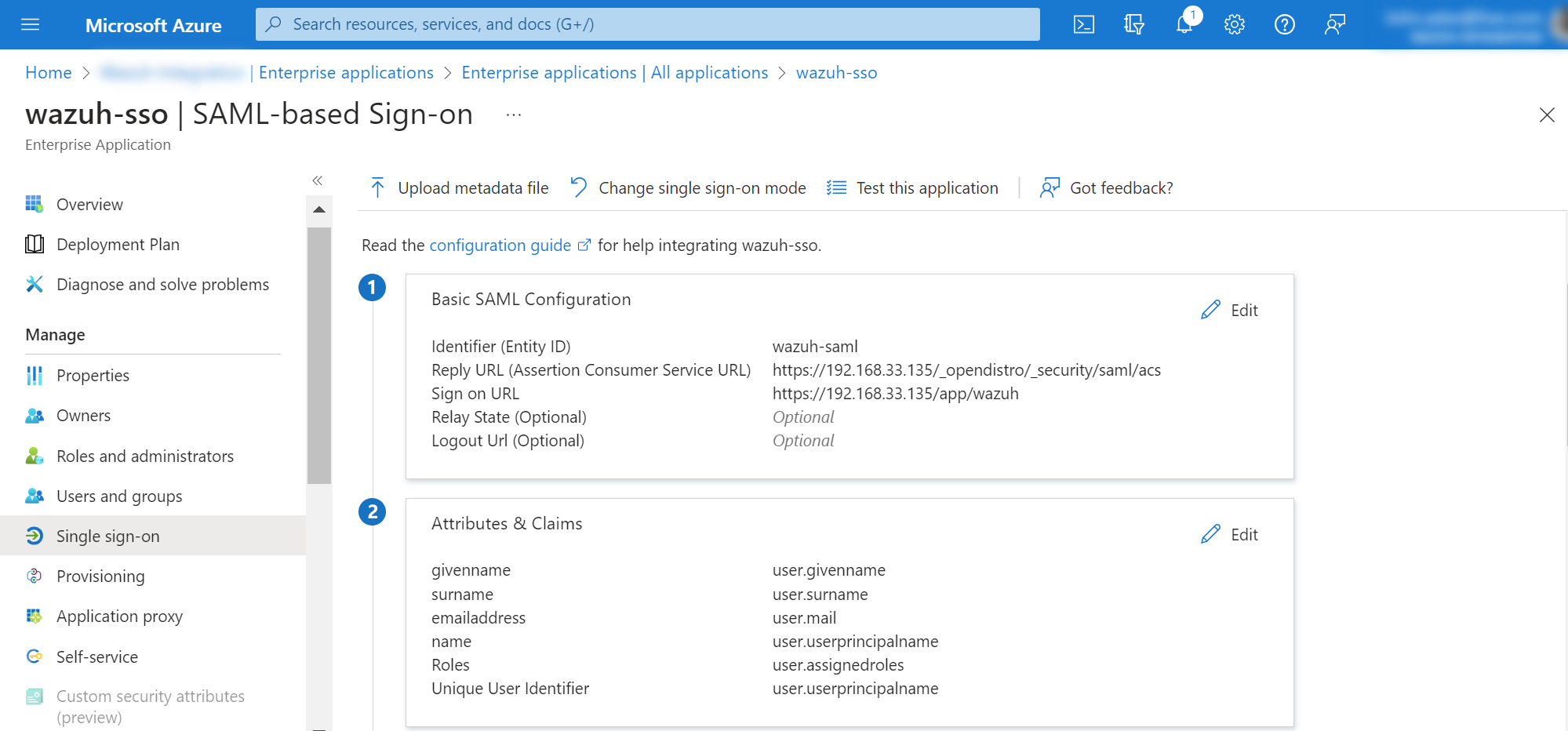
In option 1, under Basic SAML Configuration, click edit and set
wazuh-samlas Identifier (Entity ID),https://<WAZUH_DASHBOARD_URL>/_opendistro/_security/saml/acsas Reply URL (Assertion Consumer Service URL), andhttps://<WAZUH_DASHBOARD_URL>as Sign on URL (Optional). Replace<WAZUH_DASHBOARD_URL>with the corresponding value. Save and proceed to the next step.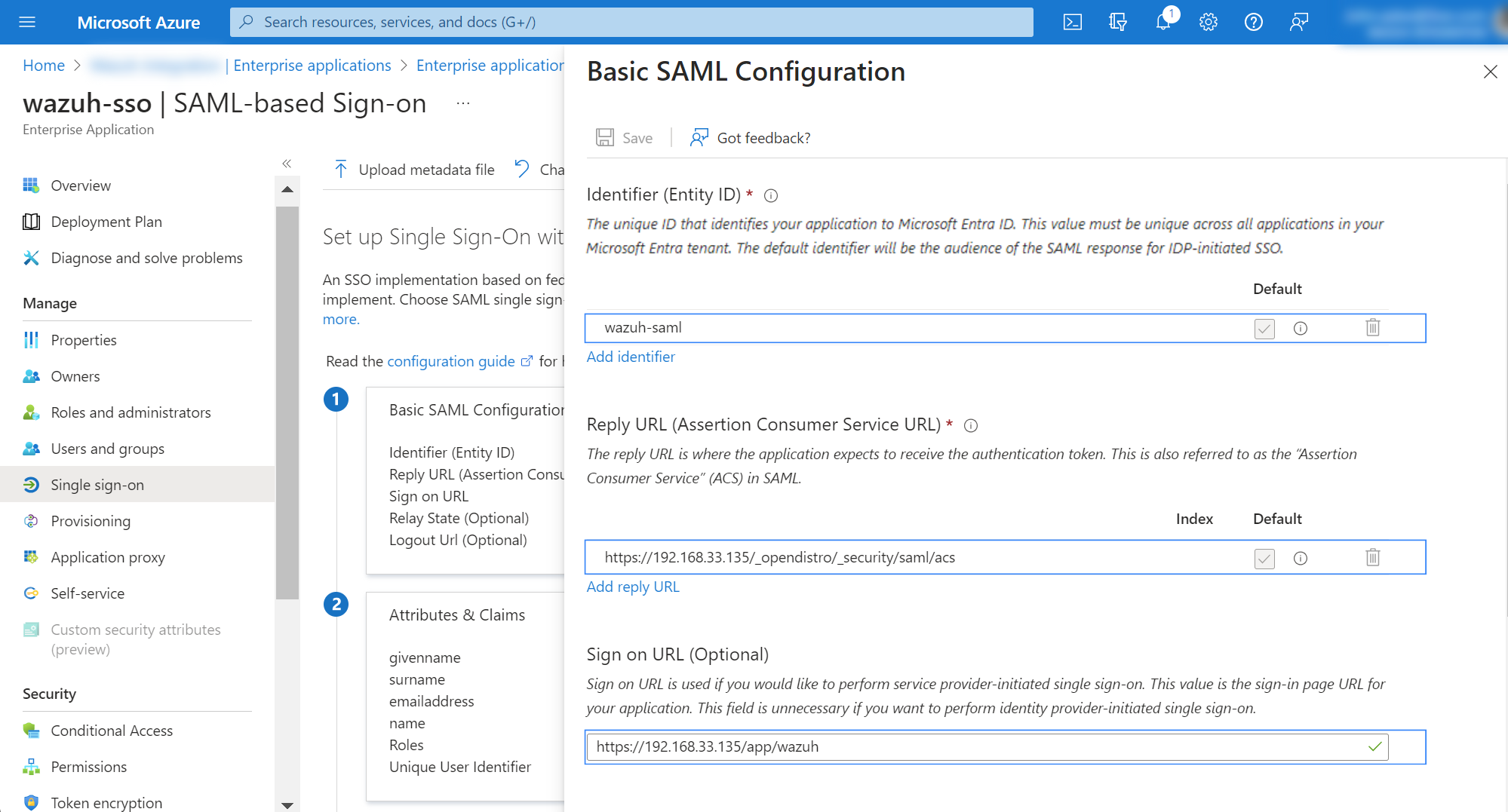
In option 2 under Attributes & Claims, click edit and select Add new claim. Select Roles as the name and user.assignedroles as Source attribute. This claim will be mapped with
roles_keyon the Wazuh indexer configuration.
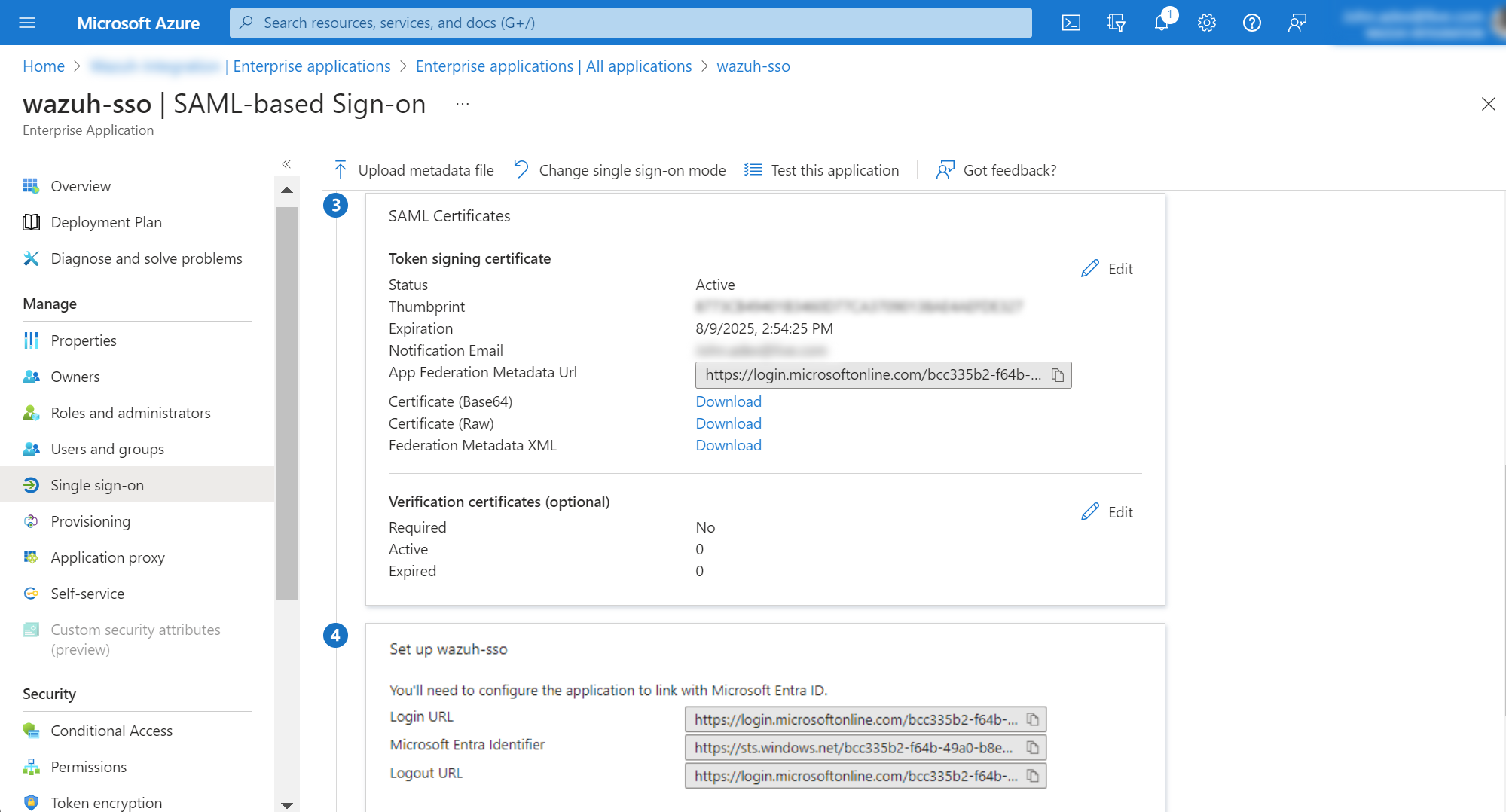
Note the necessary parameters. In the Enterprise applications menu, select your application and then click on Single sign-on. Note some parameters that will be used in the Wazuh indexer configuration.
In option 3 SAML Certificate, the App Federation Metadata Url will be the
idp.metadata_urlin the Wazuh indexer configuration file.In option 4 Set up <YOUR APPLICATION>, the Microsoft Entra ID Identifier will be our
idp.entity_id.
Wazuh indexer configuration
Edit the Wazuh indexer security configuration files. We recommend that you back up these files before you carry out the configuration.
Backup the existing Wazuh indexer security configuration files:
# /usr/share/wazuh-indexer/bin/indexer-security-init.sh --options "-backup /etc/wazuh-indexer/opensearch-security -icl -nhnv"
Generate a 64-character long random key using the following command.
openssl rand -hex 32The output will be used as the
exchange_keyin the/etc/wazuh-indexer/opensearch-security/config.ymlfile.Edit the
/etc/wazuh-indexer/opensearch-security/config.ymlfile and change the following values:Set the
orderinbasic_internal_auth_domainto0and thechallengeflag tofalse.Include a
saml_auth_domainconfiguration under theauthcsection similar to the following:
    authc:
...
      basic_internal_auth_domain:
        description: "Authenticate via HTTP Basic against internal users database"
        http_enabled: true
        transport_enabled: true
        order: 0
        http_authenticator:
          type: "basic"
          challenge: false
        authentication_backend:
          type: "intern"
      saml_auth_domain:
        http_enabled: true
        transport_enabled: false
        order: 1
        http_authenticator:
          type: saml
          challenge: true
          config:
            idp:
              metadata_url: https://login.microsoftonline.com/...
              entity_id: https://sts.windows.net/...
            sp:
              entity_id: wazuh-saml
            kibana_url: https://<WAZUH_DASHBOARD_URL>
            roles_key: Roles
            exchange_key: 'b1d6dd32753374557dcf92e241.......'
        authentication_backend:
          type: noop
Ensure to change the following parameters to their corresponding value:
idp.metadata_urlidp.entity_idsp.entity_idkibana_urlroles_keyexchange_key
Run the
securityadminscript to load the configuration changes made in theconfig.ymlfile.# export JAVA_HOME=/usr/share/wazuh-indexer/jdk/ && bash /usr/share/wazuh-indexer/plugins/opensearch-security/tools/securityadmin.sh -f /etc/wazuh-indexer/opensearch-security/config.yml -icl -key /etc/wazuh-indexer/certs/admin-key.pem -cert /etc/wazuh-indexer/certs/admin.pem -cacert /etc/wazuh-indexer/certs/root-ca.pem -h localhost -nhnv
The
-hflag specifies the hostname or the IP address of the Wazuh indexer node. Note that this command uses localhost, set your Wazuh indexer address if necessary.The command output must be similar to the following:
Security Admin v7
Will connect to localhost:9200 ... done
Connected as "CN=admin,OU=Wazuh,O=Wazuh,L=California,C=US"
OpenSearch Version: 2.19.4
Contacting opensearch cluster 'opensearch' and wait for YELLOW clusterstate ...
Clustername: wazuh-cluster
Clusterstate: GREEN
Number of nodes: 1
Number of data nodes: 1
.opendistro_security index already exists, so we do not need to create one.
Populate config from /home/wazuh-user
Will update '/config' with /etc/wazuh-indexer/opensearch-security/config.yml
   SUCC: Configuration for 'config' created or updated
SUCC: Expected 1 config types for node {"updated_config_types":["config"],"updated_config_size":1,"message":null} is 1 (["config"]) due to: null
Done with success
Wazuh dashboard configuration
Create a new role mapping for the backend role. Follow these steps to create a new role mapping, and grant read-only permissions to the backend role.
Log into the Wazuh dashboard as administrator.
Click the upper-left menu icon ☰ to open the options, go to Indexer management > Security, and then Roles to open the roles page.
Click Create role, complete the empty fields with the following parameters, and then click Create to complete the task.
Name: Assign a name to the role.
Cluster permissions:
cluster_composite_ops_roIndex:
*Index permissions:
readTenant permissions:
global_tenantand select theRead onlyoption.
Select the newly created role.
Select the Mapped users tab and click Manage mapping.
Under Backend roles, add the value attribute of the app role you created in Microsoft Entra ID and click Map to confirm the action. In our case, the backend role is
wazuh-readonly.
Verify that
run_asis set totruein the/usr/share/wazuh-dashboard/data/wazuh/config/wazuh.ymlconfiguration file. This is required to create a role mapping in the Wazuh dashboard, ensuring the backend role provided by the IdP is correctly mapped to the corresponding Wazuh role.hosts: - default: url: https://localhost port: 55000 username: wazuh-wui password: "<WAZUH_WUI_PASSWORD>" run_as: true
Click ☰ to open the menu on the Wazuh dashboard, go to Server management > Security, and then Roles mapping to open the page.
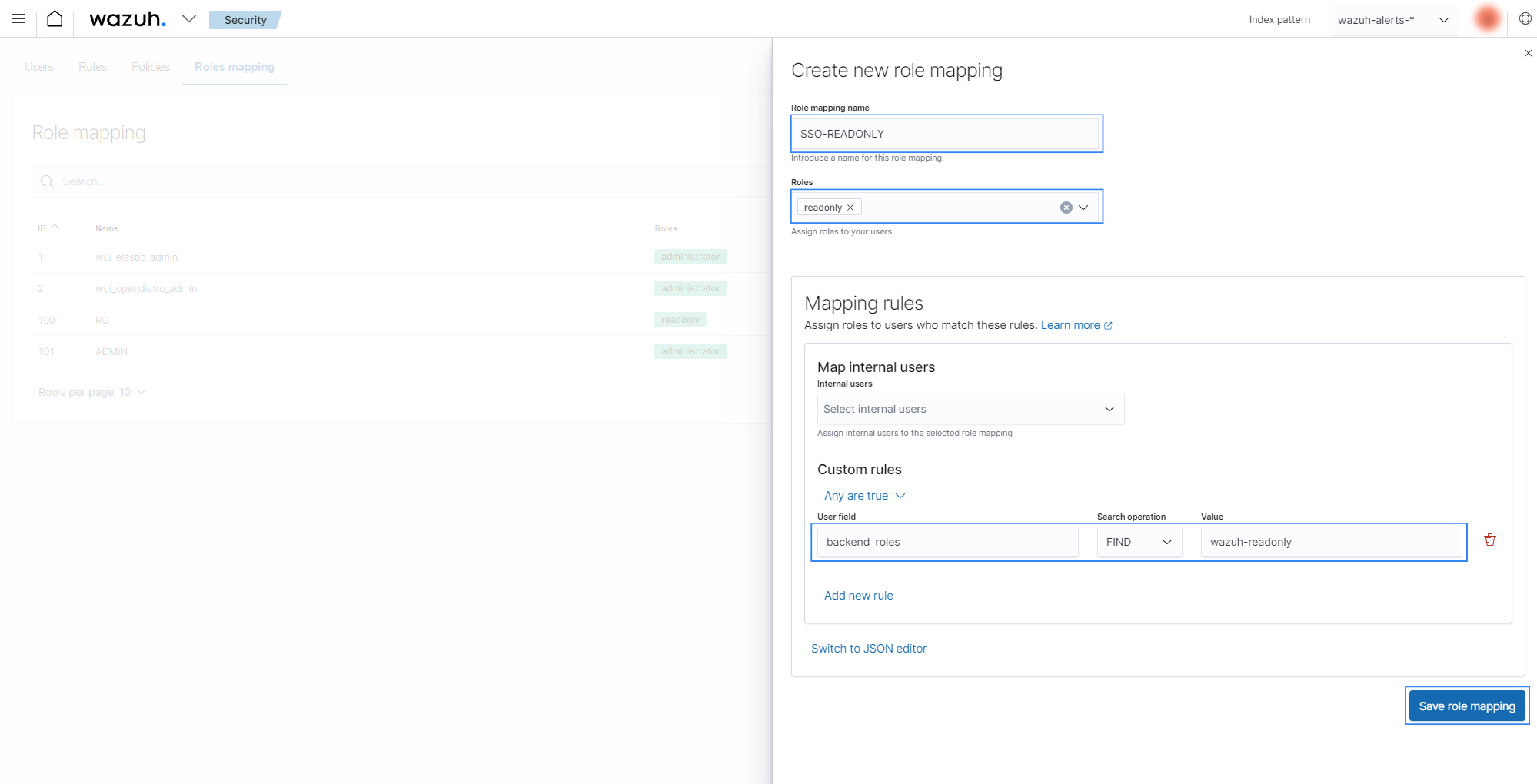
Click Create Role mapping and complete the empty fields with the following parameters:
Role mapping name: Assign a name to the role mapping.
Roles: Select
readonly.Custom rules: Click Add new rule to expand this field.
User field:
backend_rolesSearch operation:
FINDValue: Assign the value attribute of the app role you created in Microsoft Entra ID, in our case, this is
wazuh-readonly.Click Save role mapping to save and map the backend role with Wazuh as read-only.
Edit the Wazuh dashboard configuration file. Add these configurations to
/etc/wazuh-dashboard/opensearch_dashboards.yml. We recommend that you back up these files before you carry out the configuration.opensearch_security.auth.multiple_auth_enabled: true opensearch_security.auth.type: ["basicauth","saml"] server.xsrf.allowlist: ["/_opendistro/_security/saml/acs", "/_opendistro/_security/saml/logout", "/_opendistro/_security/saml/acs/idpinitiated"]
Restart the Wazuh dashboard service using this command:
# systemctl restart wazuh-dashboard
Test the configuration. To test the configuration, go to your Wazuh dashboard URL and log in with your Microsoft account.